Platform Manual • How-To Guide

The Complete Guide to MadeByHumans

A simple, step-by-step walkthrough explaining every feature, how to use it, and how each tool works behind the scenes.

Quick Navigation • 21 Features

01 • Reading and Discovery

Editorial Feed and Discovery

Discover original human writing without algorithms or spam.

Explore Editorial Feed

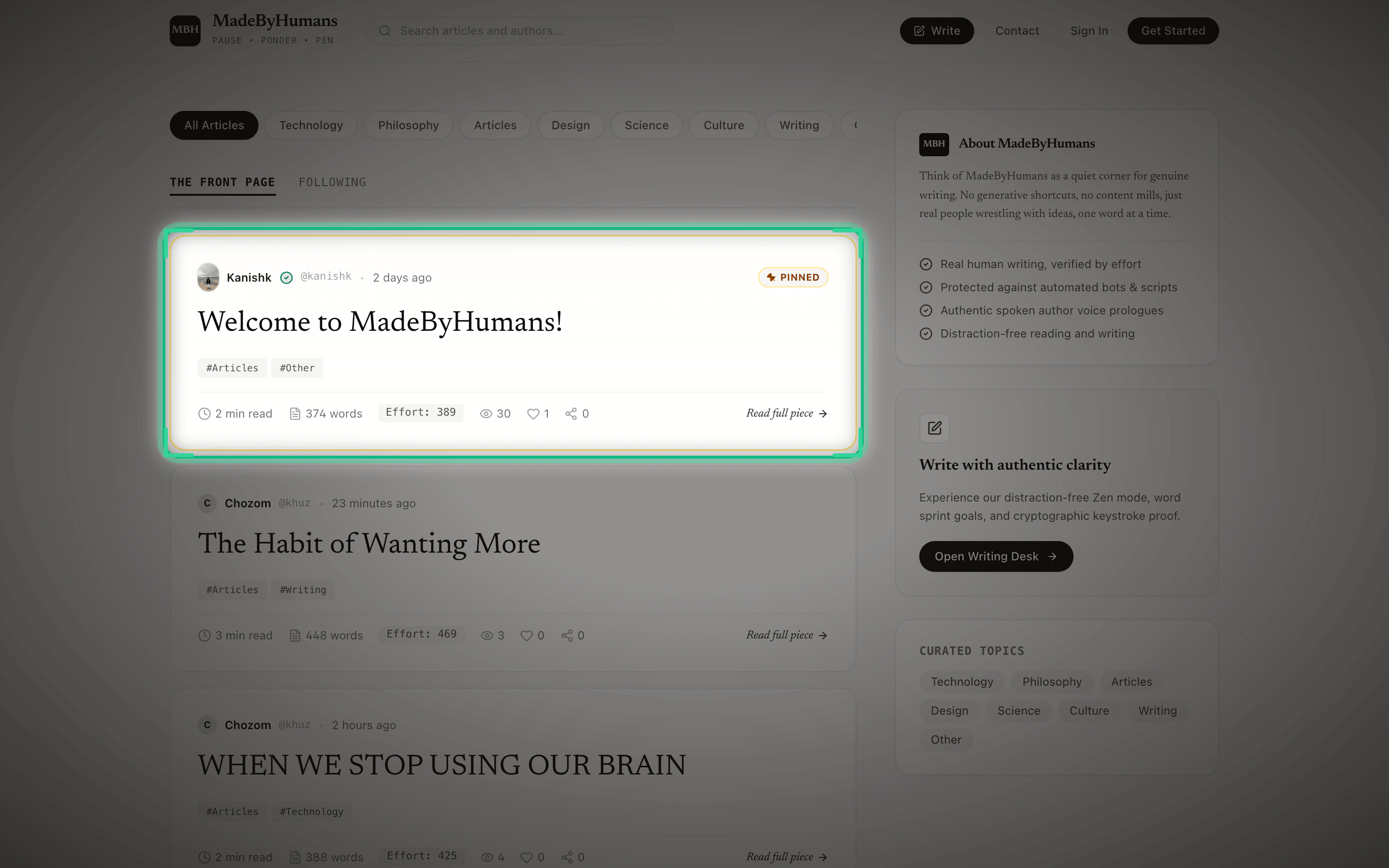
The MadeByHumans homepage is designed as an algorithm-free reading sanctuary reminiscent of an independent literary magazine. Rather than optimizing for clicks, viral rage, or machine-generated content, the feed honors genuine human prose.

Curated lead essays are selected by human editors for intellectual depth and emotional honesty. Each story card showcases an authentic author byline, verified effort badge, reading duration estimate, and relevant topic categories.

Readers can browse across diverse genres including Reflections, Craft, Philosophy, Essays, Technology, Poetry, and Slow Living, or search directly by keywords or author names.
Editorial Feed and Discovery
Click to expand full screen
The homepage editorial feed showing topic tags and the curated lead essay.Spotlight Focus: Curated lead essay card with author byline, reading time, and verified human effort badge.

How to Use This Feature (Step by Step)

1

Browse Curated Stories

Scroll through the homepage to discover featured lead stories and recently published human essays.

2

Filter by Topic Tags

Click any subject pill at the top of the feed to narrow articles by theme such as Craft, Philosophy, or Technology.

3

Search by Keyword or Author

Use the search field in the navigation bar to find specific titles, topics, or writers.

4

Enter the Reading Canvas

Click on any story card to transition seamlessly into the distraction-free reading view.

Helpful Tips
  • •Look for the gold quill icon next to story titles, which signifies pieces selected by editors for exceptional craft.
  • •Topic filters combine with search queries so you can find specific themes within your favorite subjects.

How the Editorial Feed Works

Stories are ranked through editorial curation and chronological publication rather than engagement-maximizing machine learning algorithms.

  • •No algorithmic feed sorting or behavioral surveillance trackers.
  • •Stories must meet minimum human effort score thresholds before appearing on the public feed.
  • •Topic tags are assigned directly by authors during composition.
02 • Reading and Discovery

The Reading Canvas

Distraction-free typography calibrated for deep reading.

Read Featured Story

The Reading Canvas strips away digital noise, intrusive banners, and popups, replacing them with a warm, typography-first layout inspired by fine print editions.

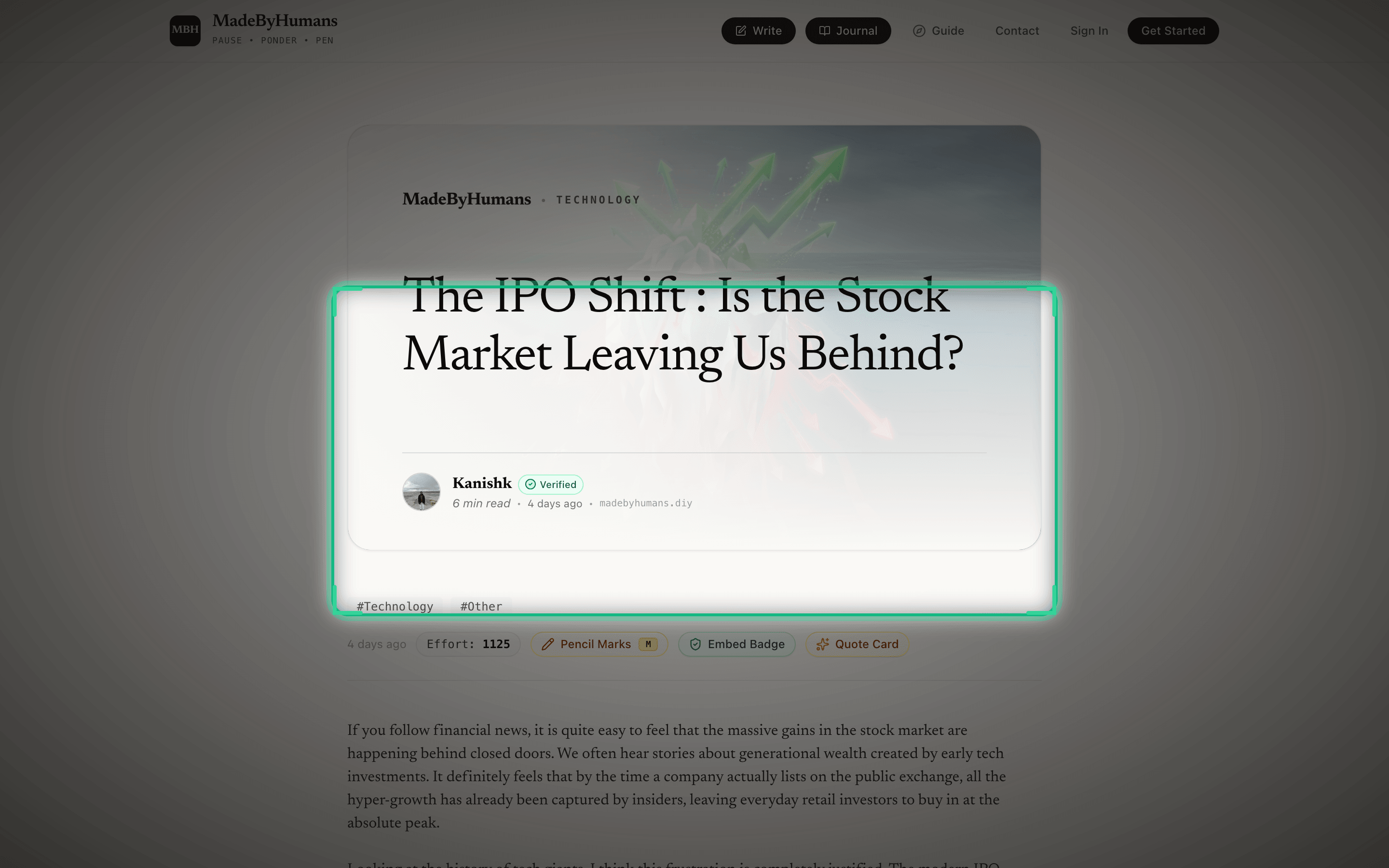
At the top of each piece, a custom Bookplate Header displays the title, subtitle, author avatar, publication date, verified word count, drafting duration, and effort score.

A subtle reading progress ribbon at the top of the viewport monitors your scroll position and displays estimated minutes remaining, while clicking any photo or illustration opens a dark, high-resolution lightbox.

The Reading Canvas
Click to expand full screen
The Reading Canvas showing the bookplate header on The IPO Shift essay by Kanishk.Spotlight Focus: Bookplate header showing the author byline, publication date, and verified craft score.

How to Use This Feature (Step by Step)

1

Open Any Essay

Select any story from the editorial feed or an author profile to enter the reading canvas.

2

Inspect the Bookplate Header

View the author credentials, drafting telemetry, and verified human effort score stamped below the title.

3

Follow Your Reading Progress

Keep track of your progress with the slender progress bar at the top edge of your browser window.

4

Inspect Media in High Resolution

Click any diagram, photograph, or illustration to open an expansive full-screen inspection view.

Helpful Tips
  • •The reading ribbon at the top fills as you scroll, indicating exactly how much of the story remains.
  • •Clicking the author avatar in the bookplate takes you straight to their complete portfolio of effort.

How the Reading Canvas Works

The canvas uses clean margins, comfortable line lengths, and warm paper tones so reading feels natural.

  • •Comfortable line lengths (65 to 75 characters) so your eyes move easily across each sentence.
  • •Warm, readable typography designed for long-form essays.
  • •Zero advertising banners or tracking scripts in the background.
03 • Reading and Discovery

Spoken Prologues (Author Voice Intros)

Hear the author introduce their essay in their own spoken voice.

Listen to Sample Prologue

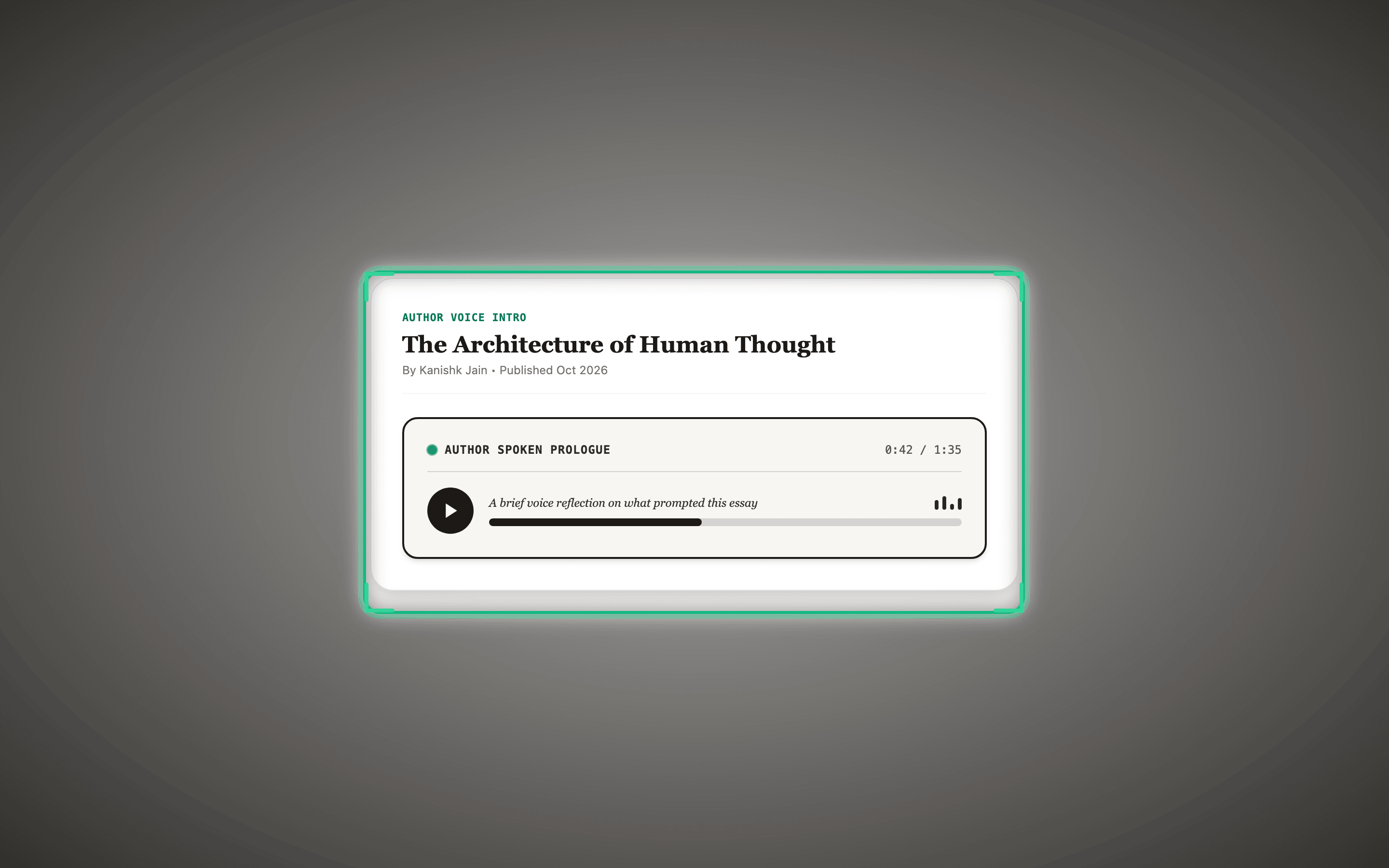
Spoken Prologues bridge the distance between reader and writer by offering an intimate, acoustic prelude. Authors record short, unscripted voice memos describing what compelled them to write, the context of their ideas, or what readers should listen for.

Rendered inside an exquisite vintage player card reminiscent of an analog audio cassette, each prologue features an interactive visual waveform and custom playback controls.

Listening to the author voice provides authentic human warmth and cadence, establishing a personal bond before your eyes glide across the first paragraph.

Spoken Prologues (Author Voice Intros)
Click to expand full screen
The vintage cassette-styled audio card for listening to author spoken introductions.Spotlight Focus: Vintage audio player card with play button, scrub bar, and duration timer.

How to Use This Feature (Step by Step)

1

Locate the Spoken Prologue

On articles featuring an audio intro, find the vintage player card positioned just beneath the bookplate header.

2

Begin Listening

Click the circular play button to start listening to the author personal introduction.

3

Scrub and Adjust Volume

Drag the waveform progress slider to replay specific moments or adjust the volume level to your comfort.

4

Record as an Author

When drafting a story in your author settings, record or upload your own 60-second voice intro before publishing.

Helpful Tips
  • •Audio prologues play in the background as you begin reading, creating a smooth transition into the essay text.
  • •Prologues are kept concise (typically 60 to 90 seconds) to provide context without replacing the written essay.

How Voice Intros Work

Audio introductions are compressed for fast loading on phones, tablets, and computers.

  • •Loads fast on mobile connections without using heavy data.
  • •Displays an interactive sound wave showing the audio shape.
  • •Plays smoothly in the background while you begin reading the story.
04 • Proof and Verification

Proof of Craft and Keystroke Telemetry

Cryptographic proof that an essay was written by human hands.

Verify Sample Certificate

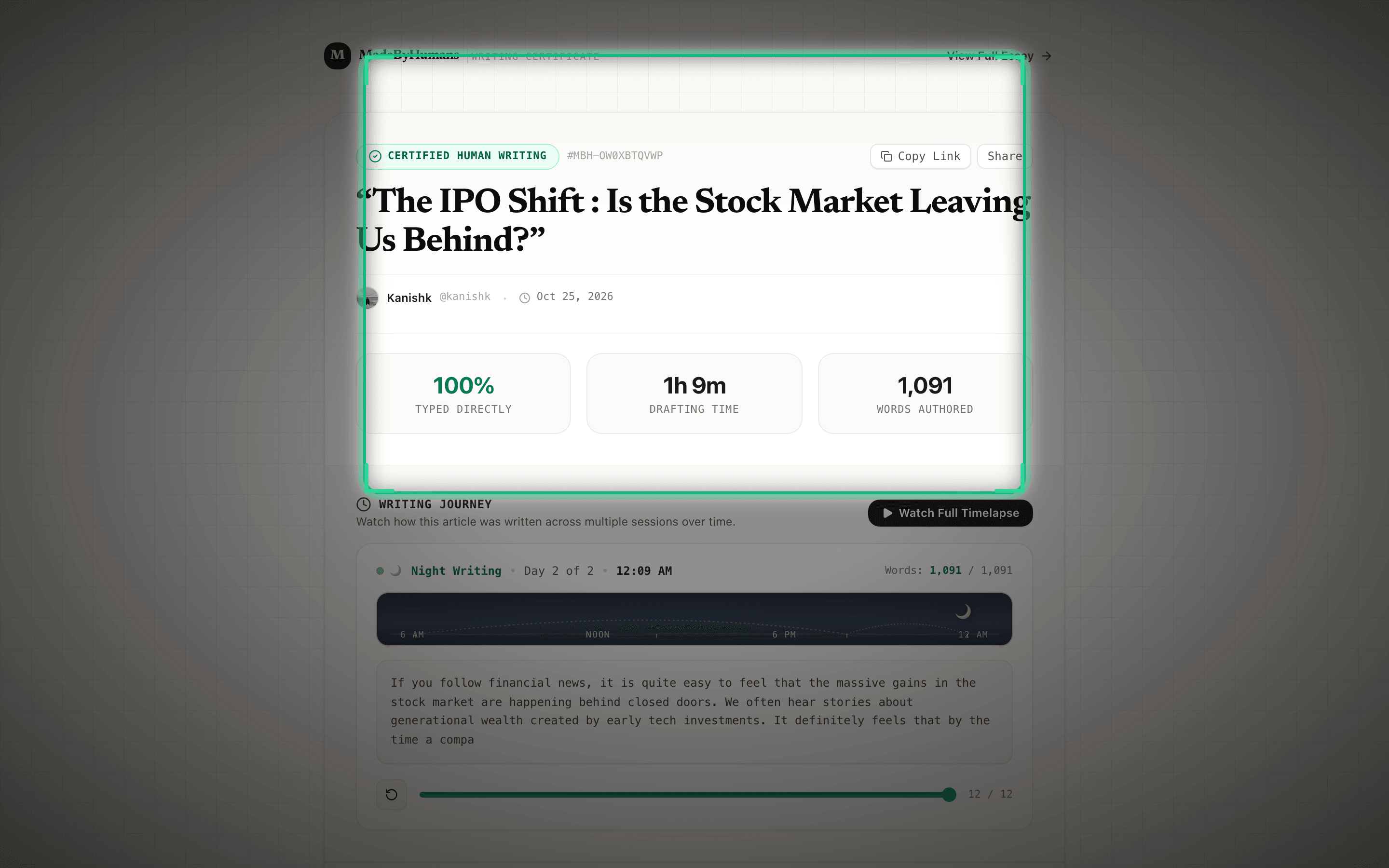
In an era flooded with synthetic AI text generated in milliseconds, Proof of Craft provides incontrovertible mathematical evidence of genuine human effort.

As you write in the Zen editor, telemetry silently measures active drafting minutes, total keystrokes, revision iterations, deletions, and typing velocity without recording private passwords or external keystrokes.

Upon publication, a unique SHA-256 cryptographic digest is generated, binding the text to its editing history. Anyone can inspect the public verification page at /verify/{id} to verify the drafting proof.

Proof of Craft and Keystroke Telemetry
Click to expand full screen
The public verification certificate showing SHA-256 hash and typing cadence for The IPO Shift.Spotlight Focus: Verification certificate with cryptographic SHA-256 hash, word count, and typing cadence stats.

How to Use This Feature (Step by Step)

1

Write Naturally in the Editor

Compose your piece in the Zen editor while the system silently logs your keystroke intervals and drafting pace.

2

Track Your Live Effort Score

Watch your real-time effort rating climb as you revise, edit, and expand your thoughts.

3

Publish with Human Certificate

When you publish, the platform computes a unique SHA-256 cryptographic digest binding your prose to its editing telemetry.

4

Inspect Public Verification

Click the "Verify Human Craft" badge at the bottom of any article to view the complete public certificate, cadence metrics, and drafting logs.

Helpful Tips
  • •Effort scores factor in both total drafting time and active keystrokes, rewarding thoughtful writing over rapid copy-pasting.
  • •The public verification link is permanent and shareable, ideal for proving authorship to editors, publishers, and readers.

How Proof of Craft Works

The editor tracks your typing time, rhythm, and edits to verify that your story was written by hand.

  • •Counts active typing time and natural pauses while you write.
  • •Calculates a unique digital fingerprint (SHA-256) of your finished text.
  • •Zero keylogging: your actual private passwords and sensitive details are never tracked.
05 • Proof and Verification

Biometric Human Seal (Touch ID, Face ID, Security Keys)

Hardware-level attestation of real human presence at publication.

Learn About Biometric Seal

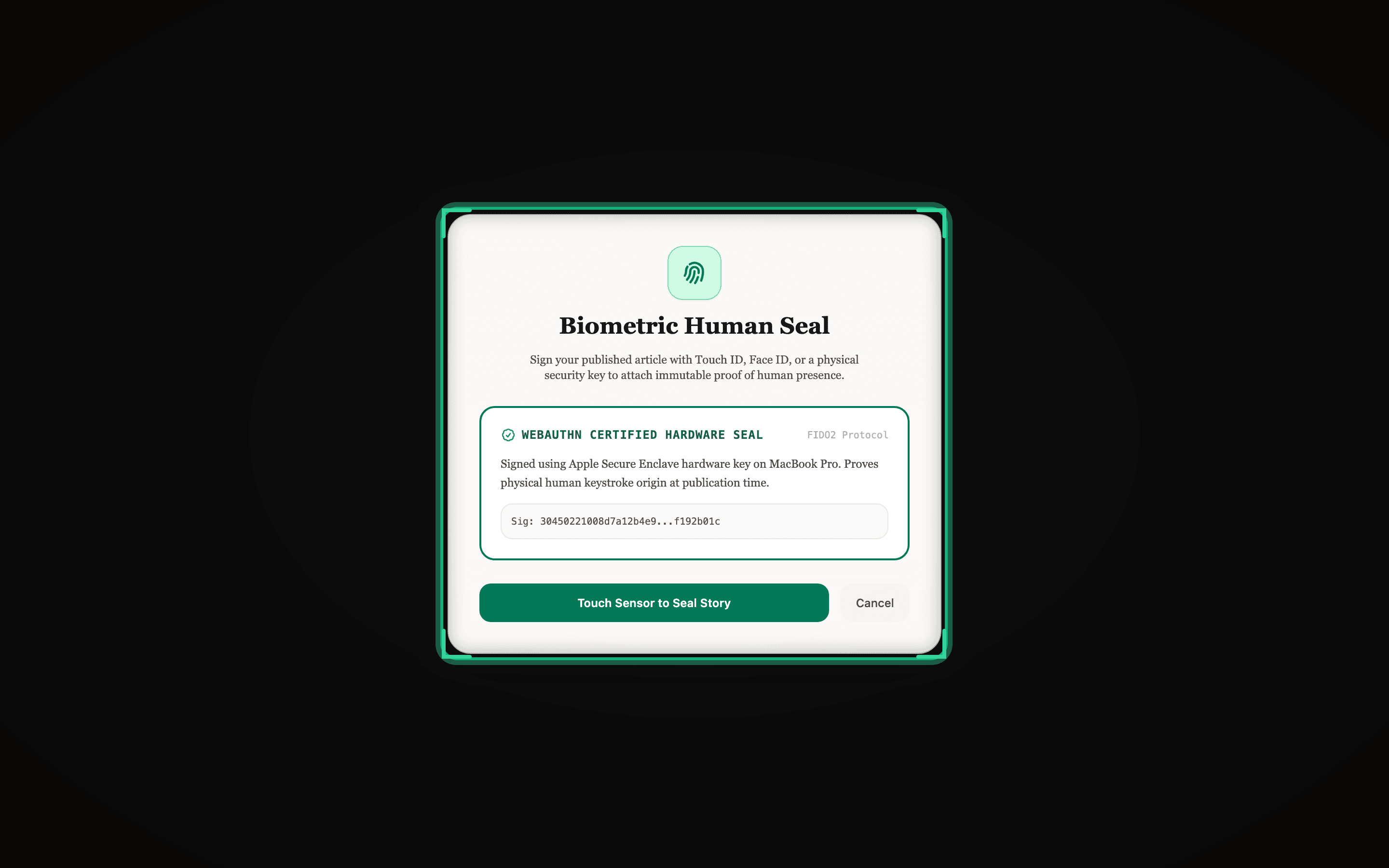
The Biometric Human Seal takes verification beyond software telemetry by anchoring each publication to the author physical device hardware.

Using modern WebAuthn protocols, authors authenticate using their device biometric sensor (Apple Touch ID, Face ID, Windows Hello, or FIDO2 hardware keys) at the precise moment of publishing.

The cryptographic signature from the hardware secure enclave proves physical human presence, generating an unforgeable emerald seal displayed on the article bookplate and verification certificate.

Biometric Human Seal (Touch ID, Face ID, Security Keys)
Click to expand full screen
The Biometric Human Seal modal showing hardware sensor verification options.Spotlight Focus: Biometric hardware sensor badge displaying Touch ID and Face ID verification.

How to Use This Feature (Step by Step)

1

Complete Your Essay Draft

Finish polishing your text and formatting inside the Zen writing desk.

2

Click Publish with Biometric Seal

Select the hardware attestation option in the publication dialog.

3

Touch Your Sensor or Key

When prompted by your operating system, tap your Touch ID fingerprint sensor, glance at Face ID, or insert your hardware key.

4

View Your Sealed Certificate

Your article immediately publishes with a verified biometric badge confirming your physical presence at the moment of launch.

Helpful Tips
  • •Biometric data never leaves your device: WebAuthn uses asymmetric cryptography where only a signature is transmitted.
  • •You can register multiple authenticators in your account settings (e.g., MacBook Touch ID and iPhone Face ID).

How the Biometric Seal Works

Uses your device fingerprint or face sensor to prove you were physically present at the keyboard when publishing.

  • •Works with Apple Touch ID, Face ID, Windows Hello, and physical security keys.
  • •Confirms a living human verified the final publication.
  • •Adds a permanent green biometric seal to your article certificate.
06 • Writing and Craft

Writing Timelapse Player

Watch the exact keystroke-by-keystroke birth of an essay.

Watch Sample Timelapse

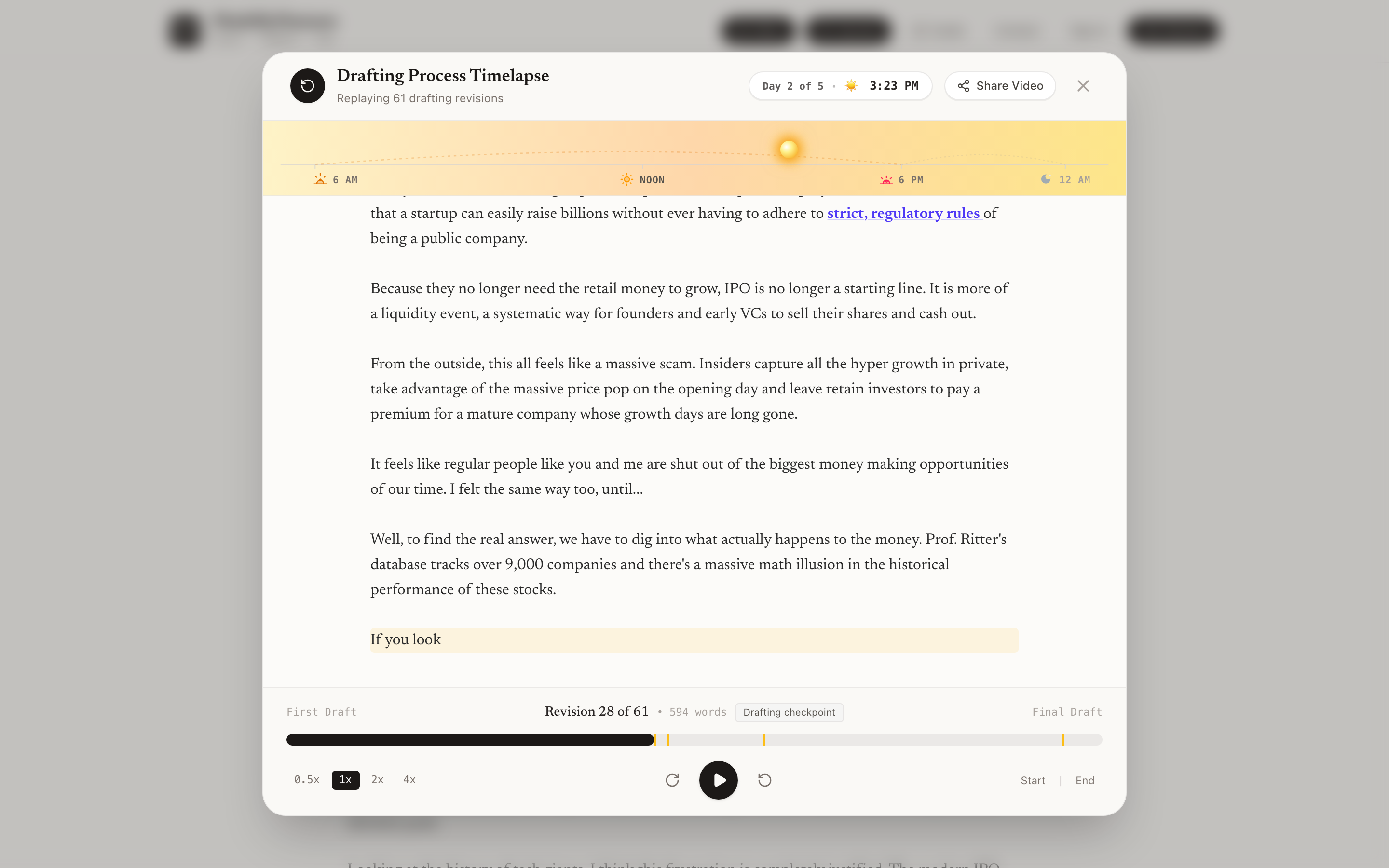
The Writing Timelapse Player reconstructs the entire creative journey of an essay from the first blank page to the final period. Readers can watch thoughts form, sentences get rewritten, and ideas sharpen in real time.

A diurnal celestial sky arc follows the time of day, displaying the sun and moon positions according to the exact hours and days the author sat at their desk drafting.

Acoustic typewriter sounds provide authentic auditory feedback for every key strike, backspace, and line return, recreating the cozy tactile ambiance of a classic manual typewriter.

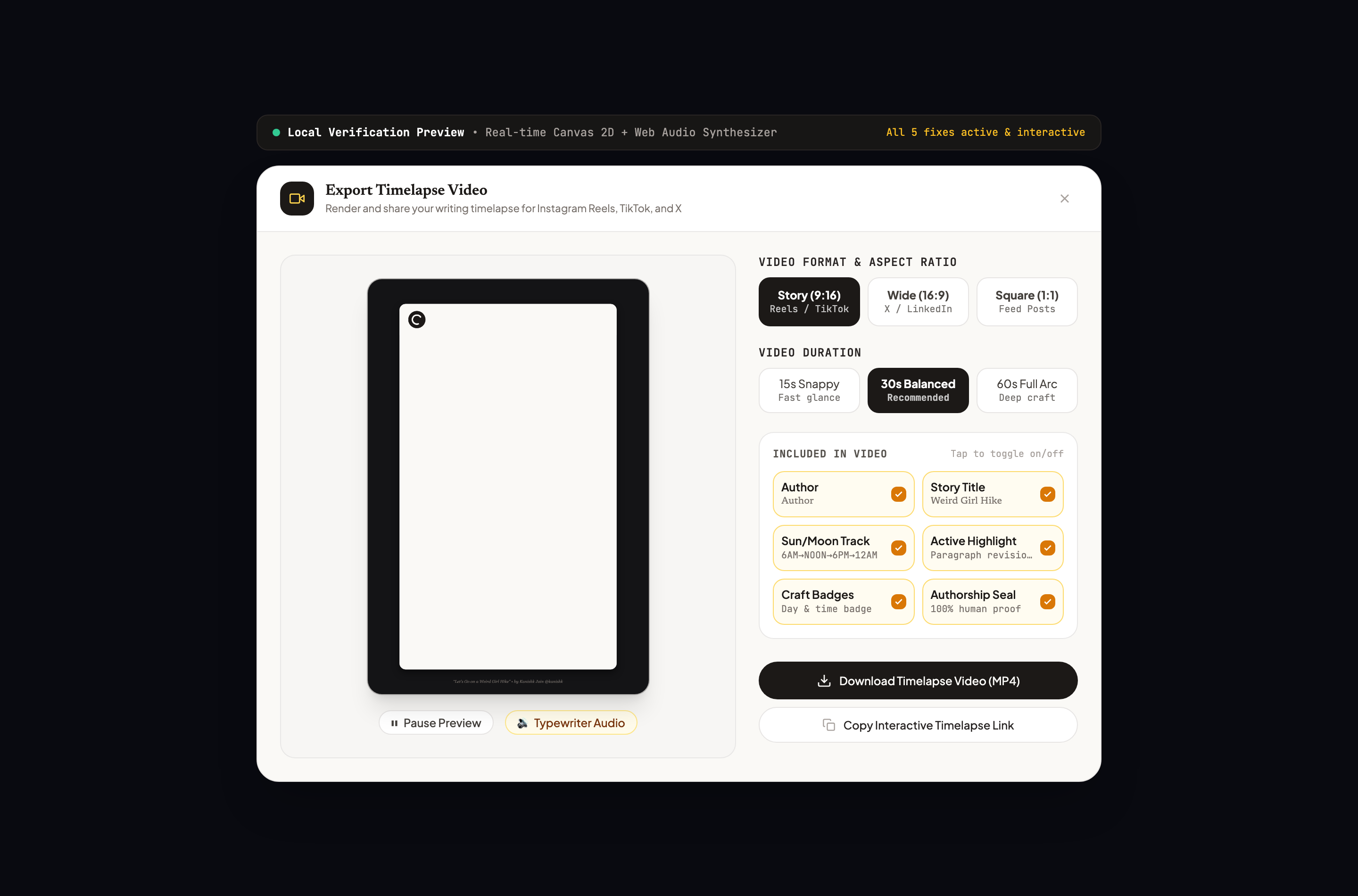
Crucially, the player includes a direct "Share Video" feature that enables authors and readers to export the timelapse into high-quality vertical 9:16 videos with sound, ready to post on Instagram Reels, TikTok, YouTube Shorts, X, and LinkedIn.

Full Interface View
Writing Timelapse Player
Click to expand full screen
The Writing Timelapse Player replaying drafting revisions on The IPO Shift essay.Complete View

How to Use This Feature (Step by Step)

1

Open the Timelapse Player

On any published article, click the "Timelapse" button located in the bookplate header or the floating reading action dock.

2

Control Playback and Speed

Click the central Play/Pause button to start the replay, or toggle between 1x, 2x, 5x, 10x, and 20x speeds to watch hours of drafting in seconds.

3

Scrub Across Revisions

Drag the interactive timeline slider at the bottom to jump between specific revision milestones, early drafts, or late-stage revisions.

4

Toggle Typewriter Audio

Click the audio speaker icon to enable mechanical typewriter acoustic sounds, hearing key clicks and bell chimes with every word.

5

Share Timelapse to Social Media

Click the "Share Video" button at the top-right of the player to immediately launch the social video exporter, customize your format, and download an animated 9:16 vertical video for your social channels.

Helpful Tips
  • •Speeding up playback to 5x or 10x is great for getting an overview of how an entire essay was constructed.
  • •Scrubbing backwards lets you see deleted paragraphs and alternative headlines that did not make the final cut.
  • •Clicking Share Video lets you export any revision segment as an animated video clip with audio for your social channels.

How Timelapse Replay Works

The player replays your saved writing history so anyone can watch your story come together word by word.

  • •Shows your real writing speed, pauses, and revisions over time.
  • •A sun and moon sky dial reflects the time of day you drafted each sentence.
  • •Includes realistic typewriter audio clicks as letters appear on screen.
07 • Sharing and Social

Social Video Story Exporter

Turn your writing timelapse into an animated social video clip.

Try Video Exporter

The Social Video Story Exporter turns the raw keystrokes of your essay into a captivating motion video tailored for modern social feeds. Instead of posting static screenshots of text, you can share the living, breathing process of your writing.

Choose between 9:16 vertical video (customized for Instagram Reels, TikTok, YouTube Shorts, and Stories) or 1:1 square video (ideal for X, LinkedIn, and Facebook feeds).

Each exported clip includes authentic typewriter audio key clicks, animated text progression, the diurnal celestial arc, author avatar, byline, and the verified human craft watermark.

All rendering happens client-side directly in your browser, generating crisp, ready-to-publish MP4 video files in seconds with zero server upload delays.

Full Interface View
Social Video Story Exporter
Click to expand full screen
The Timelapse Video Export modal with 9:16 vertical video preview and export controls.Complete View

How to Use This Feature (Step by Step)

1

Launch the Exporter

Click the "Share Video" button inside the Writing Timelapse Player on any published essay.

2

Select Your Video Format

Choose 9:16 Vertical for mobile reels and stories, or 1:1 Square for timeline posts.

3

Set Duration and Playback Speed

Choose how many seconds the exported video should run, and adjust the typing pace to highlight your favorite paragraph.

4

Preview with Audio

Click the preview play button inside the modal to inspect the animated typing, celestial sky progression, and acoustic typewriter sound.

5

Download and Share

Click "Download Video" to generate your MP4 file and post it directly to Instagram, TikTok, YouTube Shorts, X, or LinkedIn.

Helpful Tips
  • •The 9:16 vertical format fits perfectly into Instagram Reels, YouTube Shorts, and TikTok without needing any cropping.
  • •Leave typewriter sound enabled when exporting: the mechanical audio significantly increases engagement on social feeds.

How Video Stories Are Made

Videos are generated right in your browser with animated text progression and typewriter sounds.

  • •Exports high-resolution 9:16 vertical videos ready for Instagram Reels, TikTok, and YouTube Shorts.
  • •Includes authentic typewriter key sounds and carriage return bells.
  • •Runs completely on your computer with no external video rendering servers.
08 • Reading and Discovery

Pencil Marks and Margin Reflections

Leave thoughtful margin reflections inspired by handwritten library book notes.

Read Margin Notes

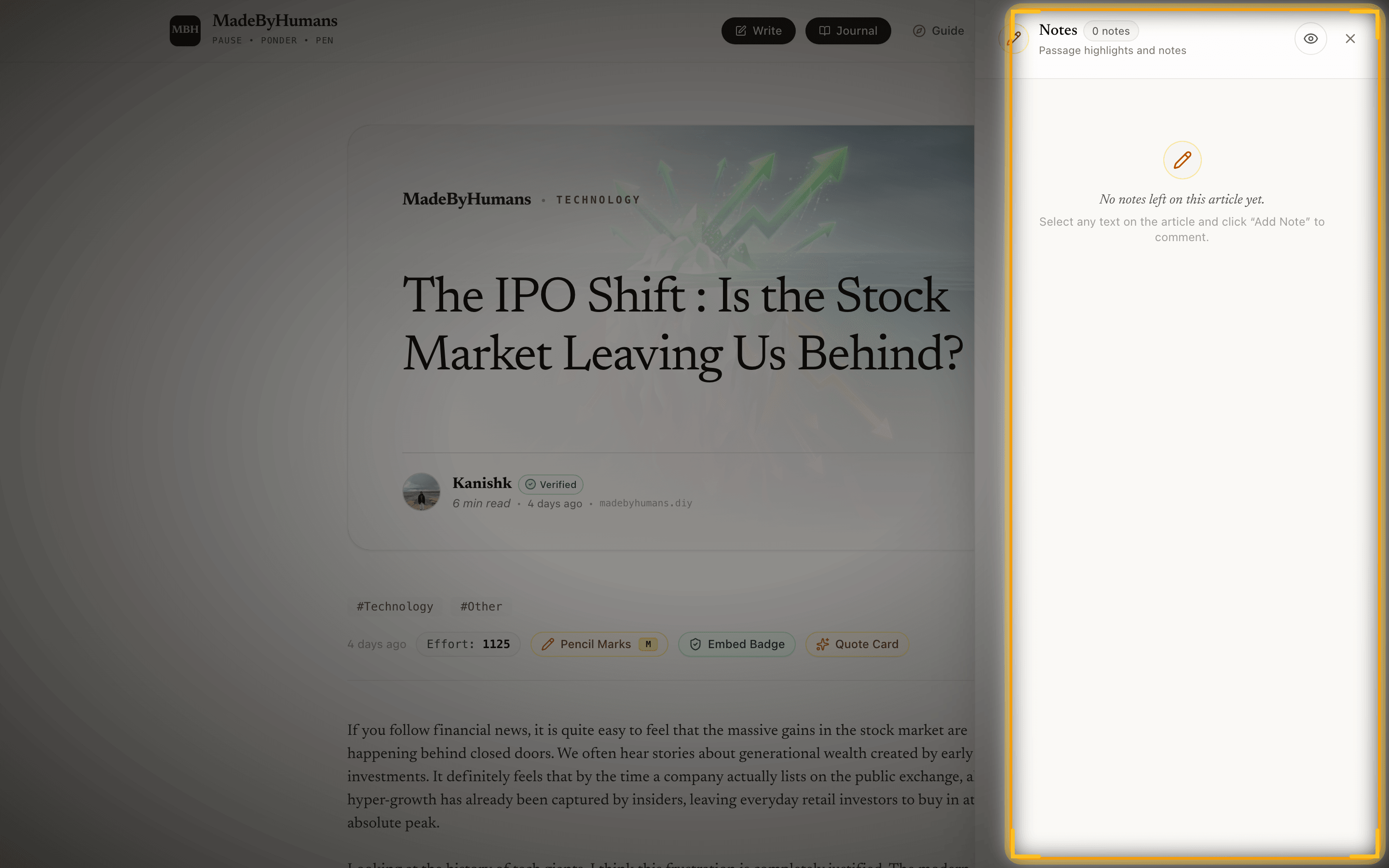
Pencil Marks reimagines commenting as an intimate literary tradition, mirroring the pencil annotations found in the margins of beloved library books.

Rather than cluttering the essay with chaotic, argumentative comment sections at the bottom of the page, notes are anchored directly to specific paragraphs and highlighted sentences.

All reader reflections reside quietly in a slide-out drawer that opens only when summoned, keeping the main reading canvas serene and distraction-free.

Authors can reply directly to margin notes, fostering thoughtful, slow conversations between writers and engaged readers.

Pencil Marks and Margin Reflections
Click to expand full screen
Reader reflections inside the Pencil Marks margin drawer on The IPO Shift.Spotlight Focus: Reader reflections inside the Pencil Marks margin drawer with author replies.

How to Use This Feature (Step by Step)

1

Highlight Any Passage

Drag your cursor over any sentence or paragraph that sparks an insight or reflection.

2

Click the Pencil Icon

Tap the floating pencil icon that appears above your highlighted text.

3

Write Your Reflection

Type your thought, question, or reaction into the slide-out margin drawer and click Submit.

4

Explore Other Margin Notes

Click the subtle pencil indicator on any paragraph to slide open the drawer and read reflections from fellow readers.

Helpful Tips
  • •Margin reflections are meant to be thoughtful and reflective, contributing context rather than fleeting reactions.
  • •Authors receive quiet notifications when readers leave margin notes on their pieces.

How Pencil Marks Work

Margin notes stay linked to the exact sentence you highlighted, even if small edits are made.

  • •Notes stay neatly anchored in the margin drawer beside your text.
  • •Authors can read reflections and reply directly to readers.
  • •Readers can also choose to leave private notes visible only to the author.
09 • Sharing and Social

Quote Card Studio

Turn memorable passages into high-resolution shareable cards.

Open Quote Card Studio

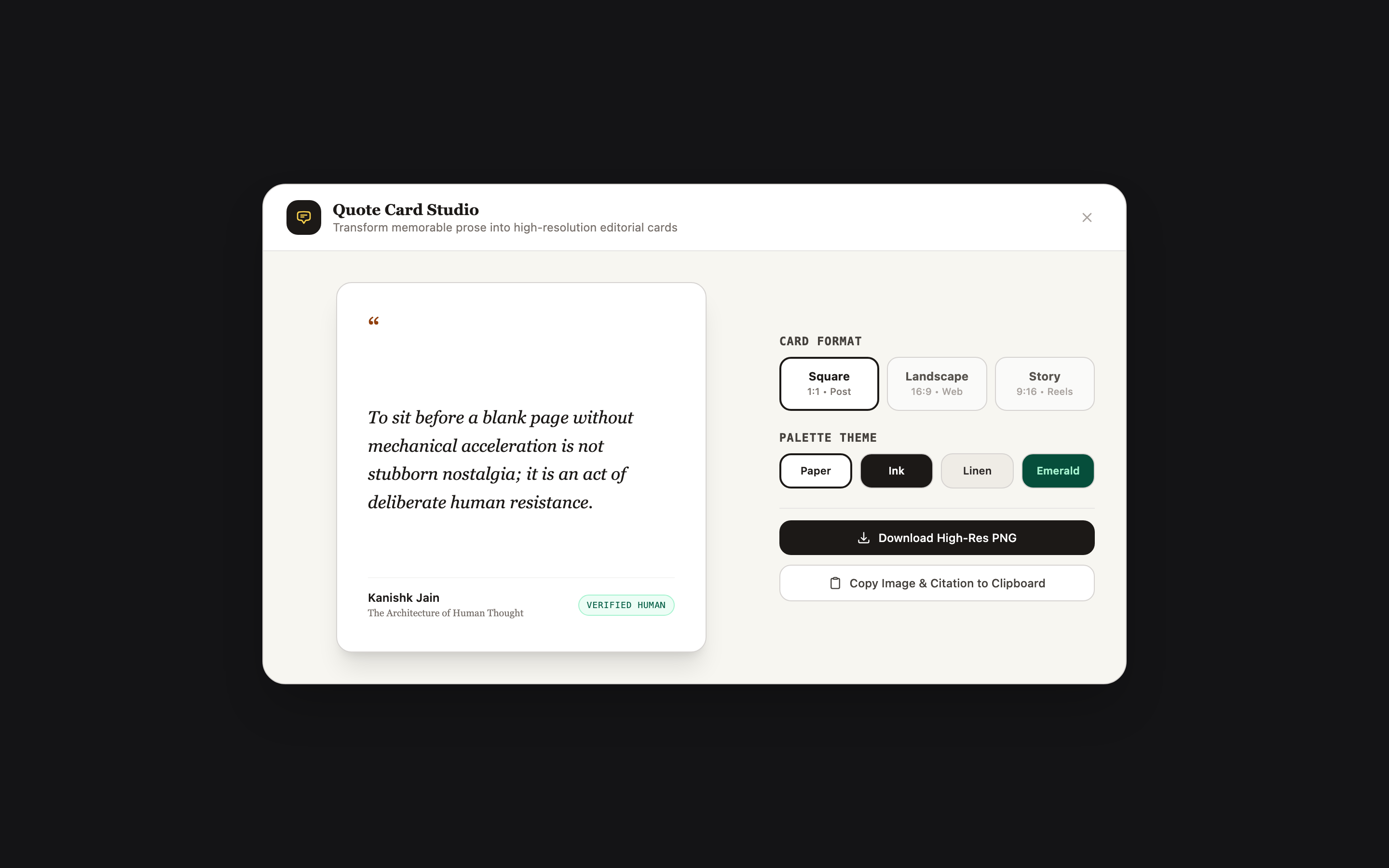
The Quote Card Studio transforms standout sentences and paragraphs from any essay into beautifully formatted, high-resolution visual cards ready for social media.

Supports multiple aspect ratios: Square (1:1) for Instagram feeds and LinkedIn, Landscape (16:9) for Twitter/X cards and blogs, and Vertical (9:16) for Stories and mobile wallpapers.

Authors and readers can select from curated aesthetic palettes including Warm Paper, Deep Ink, Vintage Linen, and Forest Emerald, paired with classic literary typography.

Cards automatically include author attribution, the essay title, and an optional verified craft telemetry stamp showing word count and drafting hours.

Full Interface View
Quote Card Studio
Click to expand full screen
The Quote Card Studio modal with live card preview and format/theme selectors.Complete View

How to Use This Feature (Step by Step)

1

Highlight Text or Click Quote Card

Select 1 to 3 compelling sentences in an essay and click the quote icon, or click "Quote Card" in the reading dock to pick an excerpt.

2

Select Aspect Ratio

Pick between 1:1 Square, 16:9 Landscape, or 9:16 Vertical depending on your destination platform.

3

Choose a Color Palette

Select from Paper, Ink, Linen, or Emerald themes to establish the visual tone of your quote card.

4

Configure Author Byline and Telemetry

Toggle the author photo, handle, article title, and verified effort score badge to match your preferences.

5

Download or Copy to Clipboard

Click "Copy Image" to instantly paste into Twitter or LinkedIn, or click "Download PNG" for a print-ready high-resolution image.

Helpful Tips
  • •The 1:1 Square format performs best on Instagram feeds and LinkedIn updates.
  • •The 16:9 Landscape format matches Twitter/X image cards and web blog previews.

How Quote Cards Work

Creates sharp quote images sized for posts, stories, and web sharing.

  • •Rendered at high resolution so text looks crisp on mobile screens and retina displays.
  • •Generates PNG images directly in your browser without waiting for server processing.
  • •Copy image straight to your clipboard with one click to paste anywhere.
10 • Sharing and Social

Animated Video Story Studio

Turn quotes into animated kinetic typography videos for mobile stories.

Craft a Video Story

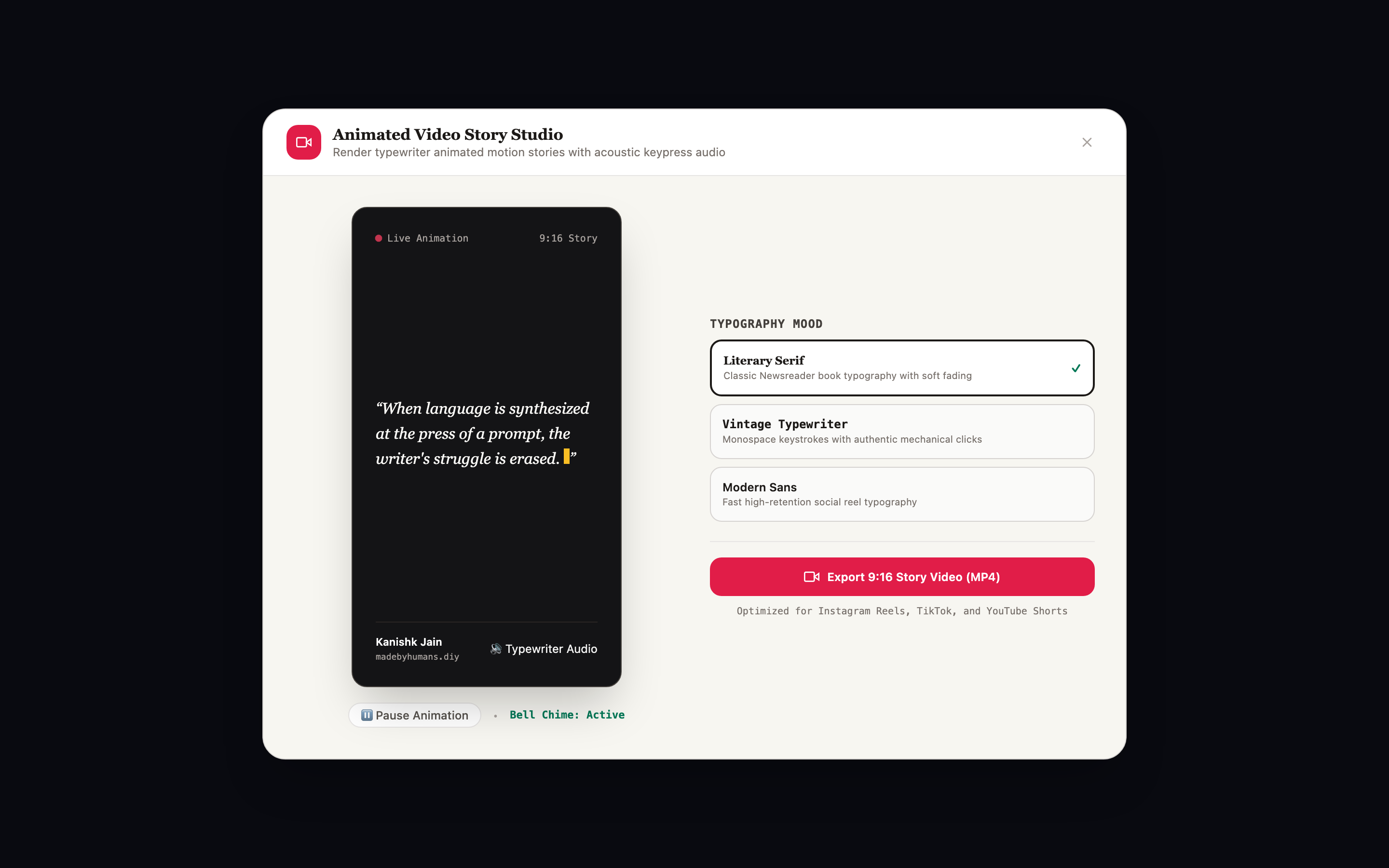
The Animated Video Story Studio extends the Quote Card Studio into the realm of kinetic motion design, animating sentences word by word with typewriter cadence.

Engineered specifically for mobile-first platforms (Instagram Reels, TikTok, YouTube Shorts, and Snapchat), each story features full 9:16 vertical formatting.

Choose between distinct typography animation moods: Typewriter Reveal, Smooth Fade In, Kinetic Motion, and Highlight Pulse.

Synchronized acoustic typewriter sound effects accompany each word as it appears, culminating in a signature bell chime when the final thought is unveiled.

Full Interface View
Animated Video Story Studio
Click to expand full screen
The Animated Video Story Studio with 9:16 vertical motion typography and audio controls.Complete View

How to Use This Feature (Step by Step)

1

Open the Animated Story Tab

Inside the Quote Card Studio, click the "Animated Story" tab at the top of the modal window.

2

Choose Animation Mood

Select your desired motion style from Typewriter, Smooth Fade, Kinetic Pulse, or Gentle Reveal.

3

Adjust Timing and Audio

Set the playback duration and toggle typewriter acoustic sound effects to fit your video rhythm.

4

Preview the Kinetic Animation

Click the Play button in the preview window to watch the live motion typography before exporting.

5

Export MP4 Video

Click "Export Video" to render and download a crisp, ready-to-post 9:16 MP4 video directly to your device.

Helpful Tips
  • •Keep video quotes between 10 and 25 words for the strongest visual impact on mobile screens.
  • •The typewriter sound effect makes viewers turn audio on when scrolling through Instagram Reels and TikTok.

How Animated Stories Work

Animates quote cards smoothly at 60 frames per second with sound effects.

  • •Natural typing motion that unveils each word smoothly in sequence.
  • •Plays realistic mechanical typewriter clicks and carriage return bell chimes.
  • •Downloads as an MP4 video file ready to share on Instagram, TikTok, or YouTube Shorts.
11 • Sharing and Social

Embeddable Proof Badges and Cryptographic Verification

Carry verified human authorship credentials across the web with instant cryptographic proof.

Open Embed Badge Studio

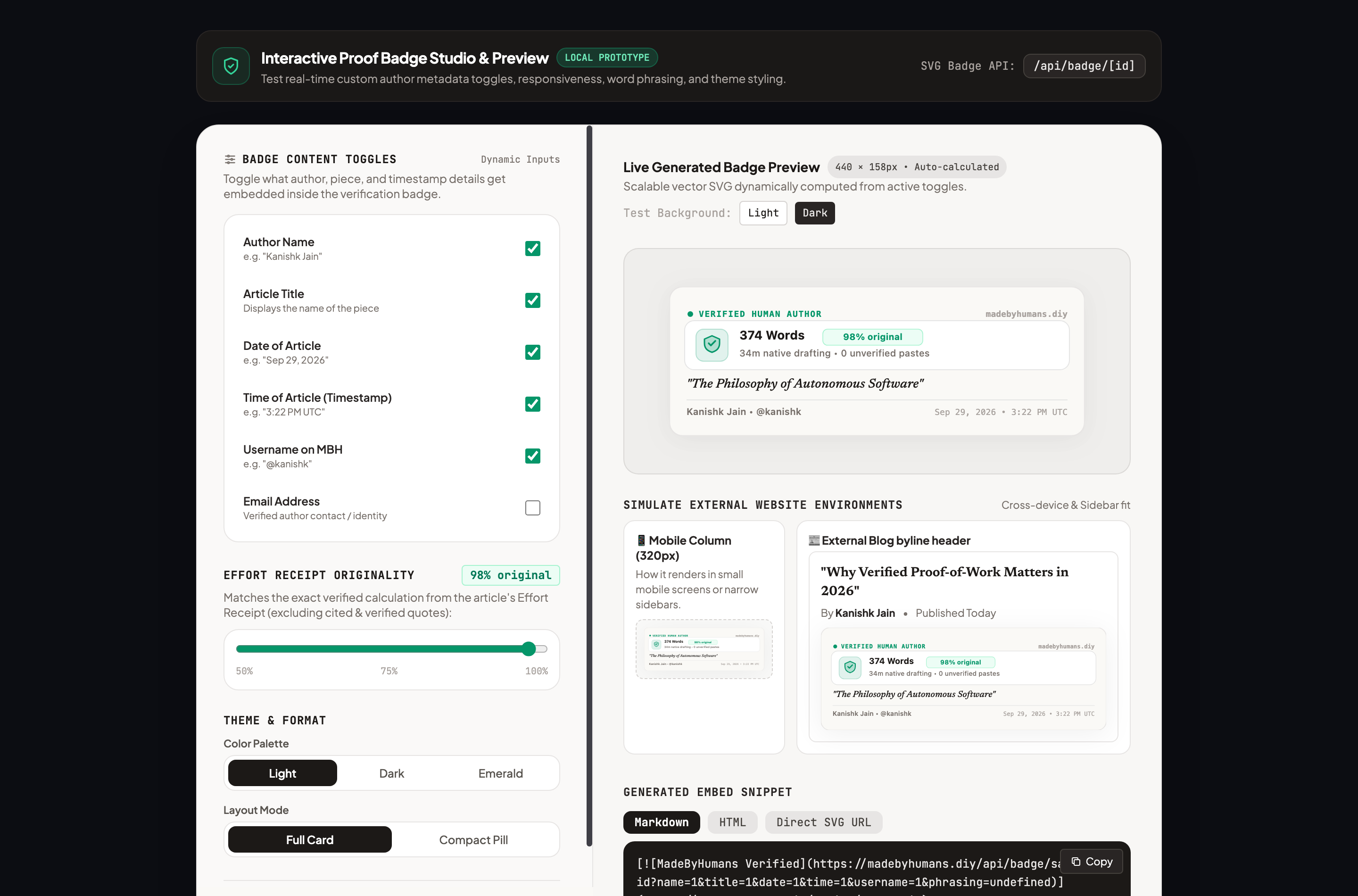
Embeddable Proof Badges allow authors to showcase their verified human credentials beyond MadeByHumans, seamlessly embedding into Substack newsletters, Medium stories, personal portfolios, and external publication platforms.

How Users & Readers Verify the Badge: Every embedded badge acts as a direct cryptographic trust anchor. Clicking or hovering over the badge opens the public verification ledger on madebyhumans.diy/verify/[id], where anyone can validate the author identity, active drafting time, certified word count, and tamper-proof SHA-256 manuscript fingerprint.

Independent Cryptographic Validation: Badges are cryptographically backed by asymmetric Ed25519 digital platform signatures and WebAuthn hardware biometric device attestations. Anyone can independently verify the signature against our public verification key at /api/keys, or inspect the paragraph-level Merkle tree to confirm that individual cited excerpts remain identical to the original certified text.

Programmatic REST Verification API: Developers, publication editors, and automated auditors can validate any badge programmatically by calling GET /api/badge/[id]/verify with open CORS headers, returning full machine-readable verification receipts, timestamped telemetry, and domain binding statuses.

Substack 1-Click Callouts: Built-in rich callout generator designed specifically for Substack newsletters with four distinct editorial presentations: Detailed Stats, Human Declaration, Clean Footnote, and Writing Journey.

Medium & oEmbed Auto-Embedding: Full oEmbed provider integration (/api/oembed). Simply paste your MadeByHumans article or verification link into Medium, WordPress, Notion, or Ghost to instantly generate a responsive, beautifully styled verification card.

Dynamic Formats & Themes: Choose from the Full Certificate Card, the Compact Byline Pill (tailored for placement directly under author bylines), or Mobile Responsive cards, styled in Warm Paper, Obsidian Slate, or Emerald Accent modes with granular metadata toggles.

Interactive Reader Experience & Hover Popover: Web component embeds include an interactive popover that lets readers inspect drafting metrics, typing rhythm sparklines, and hardware seal confirmations directly on the external host page without navigating away.

Strict Domain Locking & Crawler Protection: Authors can bind their badge to a canonical publication URL and activate Strict Domain Lock. When locked, the badge verifies exclusively on the authenticated domain, preventing content scrapers, mirror blogs, or AI aggregators from stealing the author verified badge.

Instant Revocation & Lifecycle Control: Authors maintain complete sovereign ownership over their credentials. If an article is unpublished, withdrawn, or heavily altered, the author can revoke the certificate with a timestamped reason, instantly updating external badges to reflect a withdrawn status and preventing stale claims.

Full Interface View
Embeddable Proof Badges and Cryptographic Verification
Click to expand full screen
The Embed Badge Studio showing badge styles, Substack callout options, theme toggles, and live verification controls.Complete View

How to Use This Feature (Step by Step)

1

Open the Embed Badge Studio

From any of your published essays, click the "Embed Badge" button in the top action bar or share drawer.

2

Select Platform & Format

Pick from Markdown, Substack Rich Callouts, Medium 1-Click oEmbed, HTML/SVG, or the Zero-Dependency Web Component.

3

Customize Metadata & Styling

Toggle author byline, piece title, drafting duration, SHA-256 fingerprint, and typing cadence sparkline across Light, Dark, or Emerald themes.

4

Configure Domain Binding & Strict Lock

Enter your canonical publication URL and optionally enable Strict Domain Lock to restrict badge authenticity strictly to your personal domain.

5

Copy, Embed, and Verify

Paste the generated snippet into your external CMS. Click or hover on the live badge to confirm that the verification gateway resolves your certified manuscript ledger.

Helpful Tips
  • •How to Validate Any Badge as a Reader: Click the badge or visit /verify/{id} to inspect the cryptographic SHA-256 content hash, Ed25519 platform signature, and paragraph-level Merkle tree.
  • •For Substack Writers: Use the "Substack Callout" panel inside the Embed Studio to copy formatted rich cards directly into your Substack drafts with one click.
  • •For Medium & Ghost: Simply copy your public verification link and paste it into the editor; the oEmbed integration automatically renders a live verification card.
  • •Strict Domain Lock prevents third-party scraper websites and AI scrapers from hotlinking or cloning your verification badge on unauthorized domains.
  • •Export High-DPI PNGs: You can download high-resolution badge image cards or copy them directly to your clipboard for slide decks, PDF publications, and social media.

How Embed Badges Work

Lightweight badges you can place on your personal blog, Substack, or Medium to link to your proof.

  • •Loads fast and will not slow down your website.
  • •Links directly to your public verification certificate on madebyhumans.diy.
  • •Supports 1-click rich callouts for Substack and automatic cards for Medium.
  • •Strict Domain Lock ensures only your own website can display your badge.
12 • Community and Privacy

Author Portfolio and Pinned Shelf

A cumulative showcase of your lifetime human writing effort.

View Kanishk Portfolio

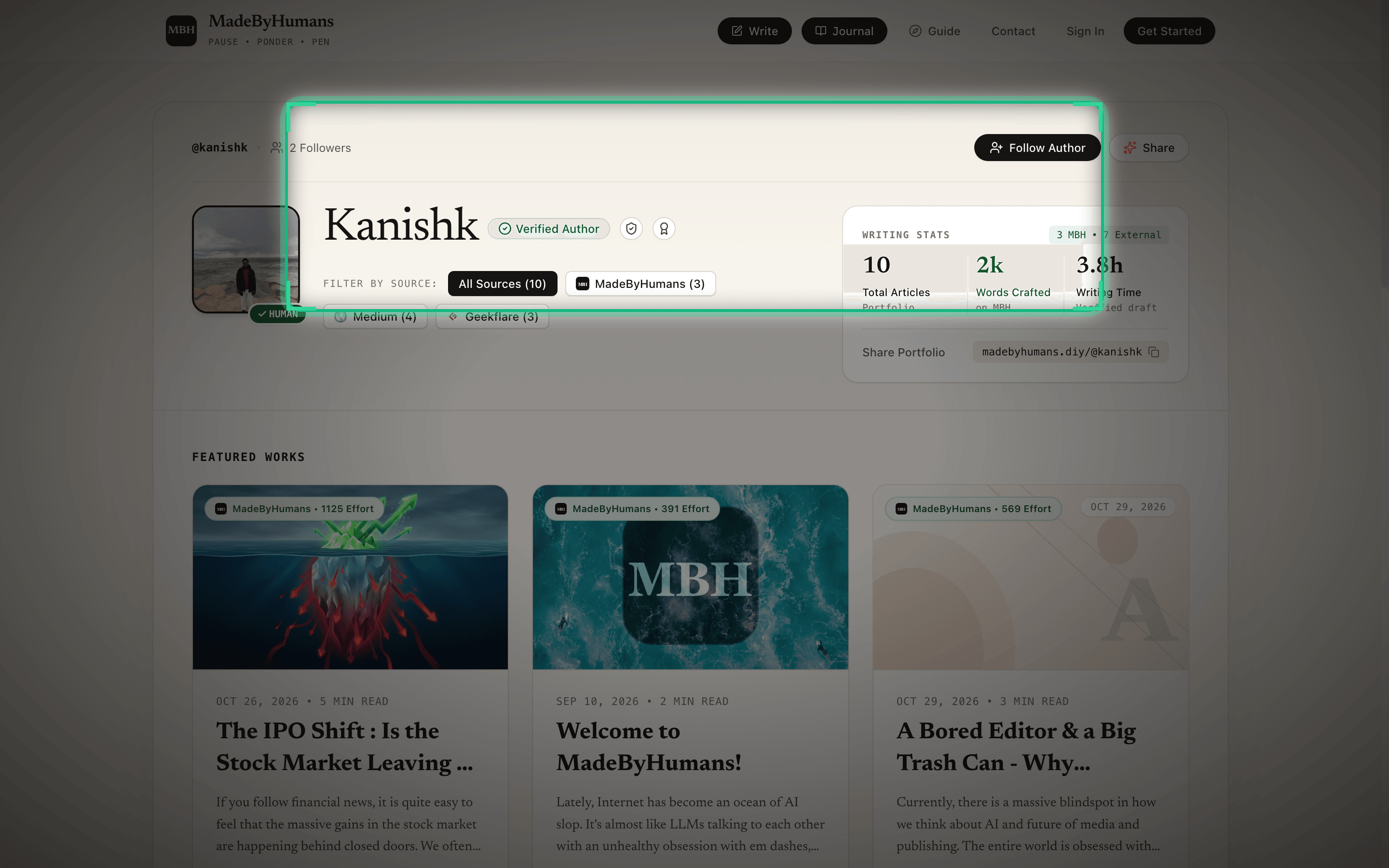
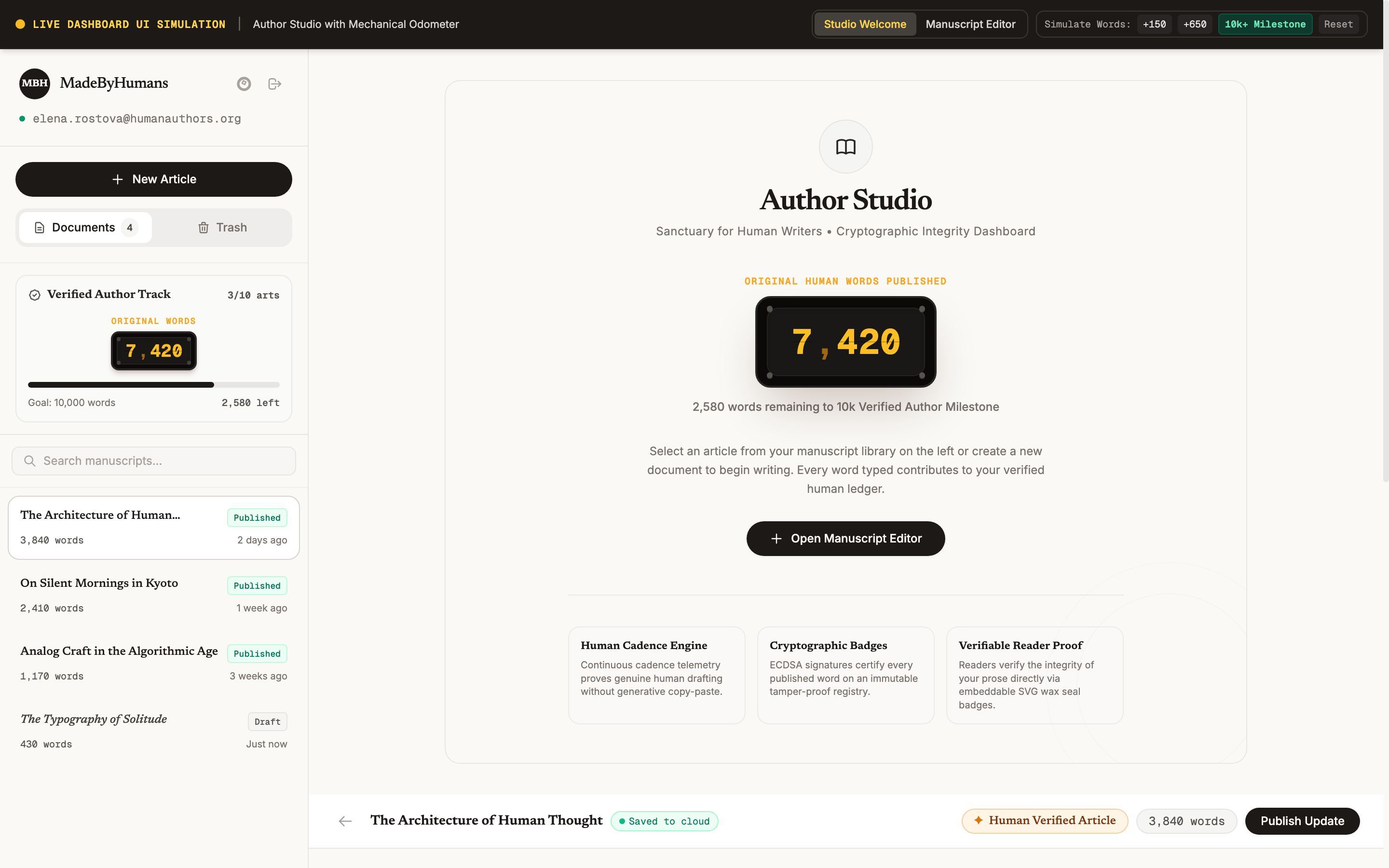
Your Author Portfolio serves as your digital literary home, gathering your essays, reflections, and craft milestones into an elegant public profile.

At the heart of the profile sits the Cumulative Effort Scorecard, showcasing your total verified human words written, active hours spent drafting, and overall craft rating.

A customizable Pinned Shelf lets you feature up to three hallmark essays at the top of your page to welcome new readers.

Connect your personal blog, Substack, published books, and social profiles, giving readers a comprehensive gateway to your entire writing presence.

Author Portfolio and Pinned Shelf
Click to expand full screen
The author profile scorecard for Kanishk showing verified words, drafting time, and pinned essays.Spotlight Focus: Author effort scorecard showing cumulative verified words, drafting hours, and published stories.

How to Use This Feature (Step by Step)

1

Visit Your Author Profile

Navigate to madebyhumans.diy/@yourusername or click your avatar in the navigation bar.

2

Inspect the Effort Scorecard

Review your lifetime statistics including total verified words written and drafting hours logged.

3

Pin Your Hallmark Essays

Click "Edit Profile" and select up to three favorite stories to showcase prominently on your pinned shelf.

4

Connect External Publications

Add links to your personal website, Substack newsletter, books, or social profiles.

5

Share Your Writing Link

Copy your clean, distraction-free author URL to use as your professional writing portfolio.

Helpful Tips
  • •Your author handle creates a memorable URL (e.g. madebyhumans.diy/@kanishk) you can share in your email signature or social bio.
  • •Pinned stories appear in a dedicated top shelf before the chronological list of all published essays.

How Your Portfolio Works

Your portfolio automatically shows your total hours, words, and published pieces in one place.

  • •Total writing hours and words are counted from your saved drafts and published stories.
  • •Your bio, links, and pinned essays load fast for readers anywhere.
  • •Your handle (@kanishk) gives you a clean personal link to share.
13 • Proof and Verification

Verified Human Author Standard (10 Articles)

The gold standard for dedicated human essayists.

Check Your Milestone

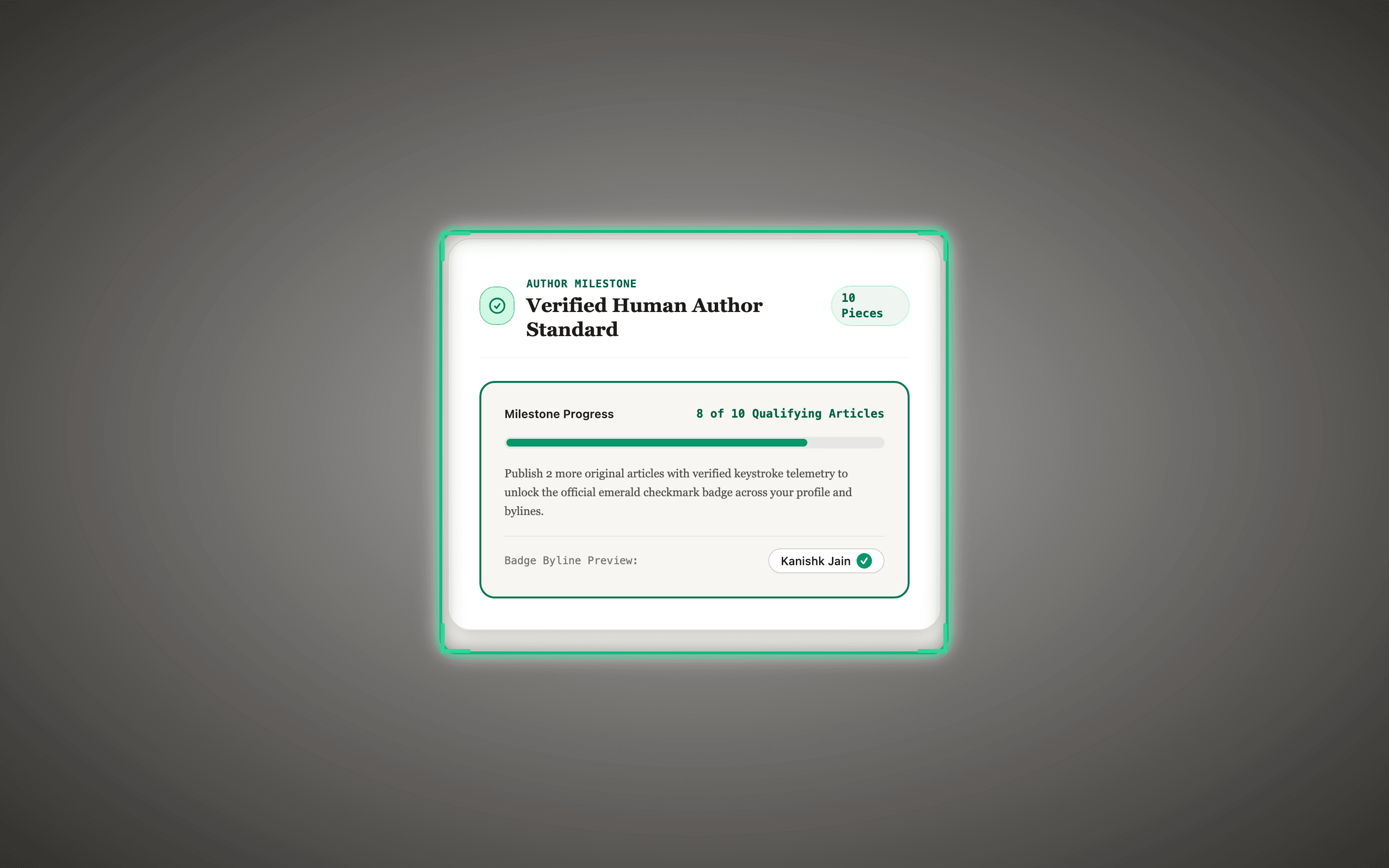
The Verified Human Author Standard is a prestigious platform milestone earned through demonstrated writing dedication, not purchased with a subscription.

Authors who write and publish 10 original articles backed by verified keystroke telemetry and human craft scoring receive the coveted emerald checkmark badge.

This standard establishes strong anti-spam defenses, separating authentic essayists from transient accounts and AI content farms.

Verified authors enjoy featured placement across the homepage editorial feed and a permanent verification badge displayed on all current and future publications.

Verified Human Author Standard (10 Articles)
Click to expand full screen
The Verified Human Author milestone progress card showing the 10-article achievement.Spotlight Focus: Verified author milestone card with 10-article progress bar and emerald checkmark badge.

How to Use This Feature (Step by Step)

1

Publish Original Stories

Write and publish original essays using the Zen writing desk, building authentic keystroke logs.

2

Monitor Milestone Progress

Track your progress toward the 10-article milestone on your author dashboard.

3

Automated Craft Review

Once you reach 10 published pieces, the platform validates your cumulative telemetry record.

4

Earn the Emerald Badge

Receive your permanent emerald verification checkmark, proudly featured on your profile and story bylines.

Helpful Tips
  • •Every published piece must maintain a high human craft score to count toward the 10-article milestone.
  • •Verified author status is permanent as long as your account continues to publish authentic human writing.

How Author Milestones Work

Once you publish 10 verified original pieces, your account receives the permanent emerald checkmark badge.

  • •Milestones reward consistent writing and dedication rather than paid subscriptions.
  • •The emerald checkmark appears on your author profile and every story byline.
  • •Verified authors are featured prominently across the editorial feed.
14 • Community and Privacy

Zero-Commission Coffee Tip Jar

Direct reader-to-author support with 0% platform fee.

Set Up Tip Jar

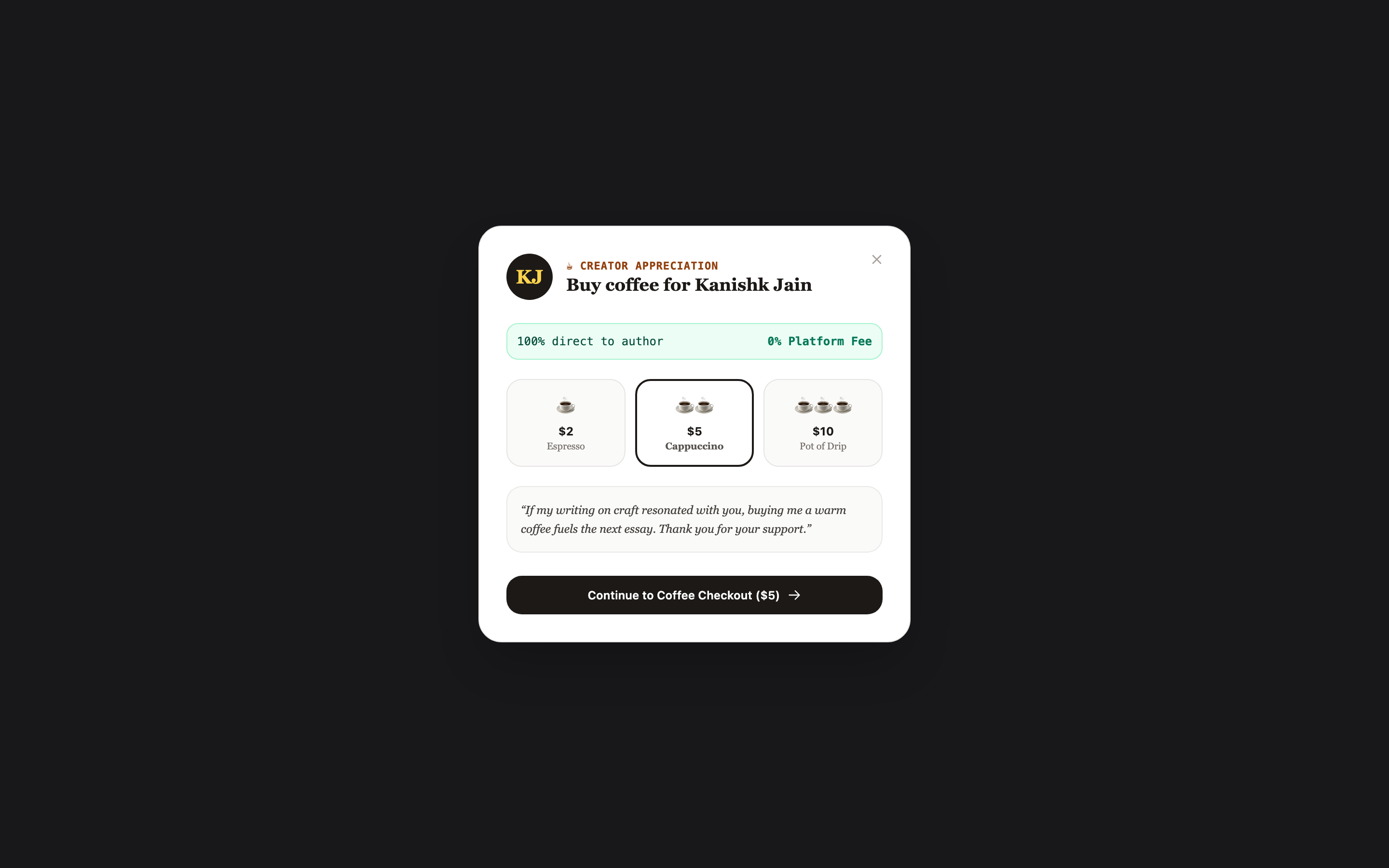
The Zero-Commission Coffee Tip Jar offers a frictionless way for grateful readers to support the writers whose words moved them.

Unlike traditional platforms that deduct 10% to 30% of author tips, MadeByHumans takes an absolute 0% fee. Every dollar, euro, or rupee goes directly from reader to author.

Supports global payment integrations including Stripe, Buy Me a Coffee, Ko-fi, PayPal, and Indian UPI QR codes for instant cross-border support.

Authors can craft a warm personal thank-you message that displays inside the tip modal when readers open the jar.

Full Interface View
Zero-Commission Coffee Tip Jar
Click to expand full screen
The Author Coffee Tip Jar modal with direct payment methods and zero platform cut.Complete View

How to Use This Feature (Step by Step)

1

Open Tip Settings

In your author dashboard, navigate to the "Coffee Tip Jar" settings tab.

2

Connect Your Payment Service

Paste your Buy Me a Coffee, Ko-fi, Stripe, or PayPal URL, or upload your UPI QR code image.

3

Write a Personalized Note

Compose a short, warm thank-you message to welcome readers who click your tip jar.

4

Save and Activate

Click "Save Tip Settings" to instantly display the coffee cup icon on all your published essays and author profile.

5

Receive Direct Support

Readers click the coffee cup icon on your stories to open the modal and support you directly with zero platform deductions.

Helpful Tips
  • •Writers in India can upload their UPI QR code so domestic readers can tip instantly via Google Pay, PhonePe, or Paytm.
  • •Adding a personal note explaining what tips fund (e.g. coffee, books, or writing time) significantly increases reader generosity.

How the Tip Jar Works

Readers can buy you a warm coffee with 100% of the funds going directly to you.

  • •Zero platform commission: MadeByHumans never takes a cut of your tips.
  • •Readers pay directly through your own payment links (Stripe, UPI, Ko-fi, PayPal).
  • •No credit card or banking numbers are stored on our servers.
15 • Community and Privacy

Pen-Pal Letters & Correspondence

Private, thoughtful epistolary correspondence between authors and readers.

Open Letters Desk

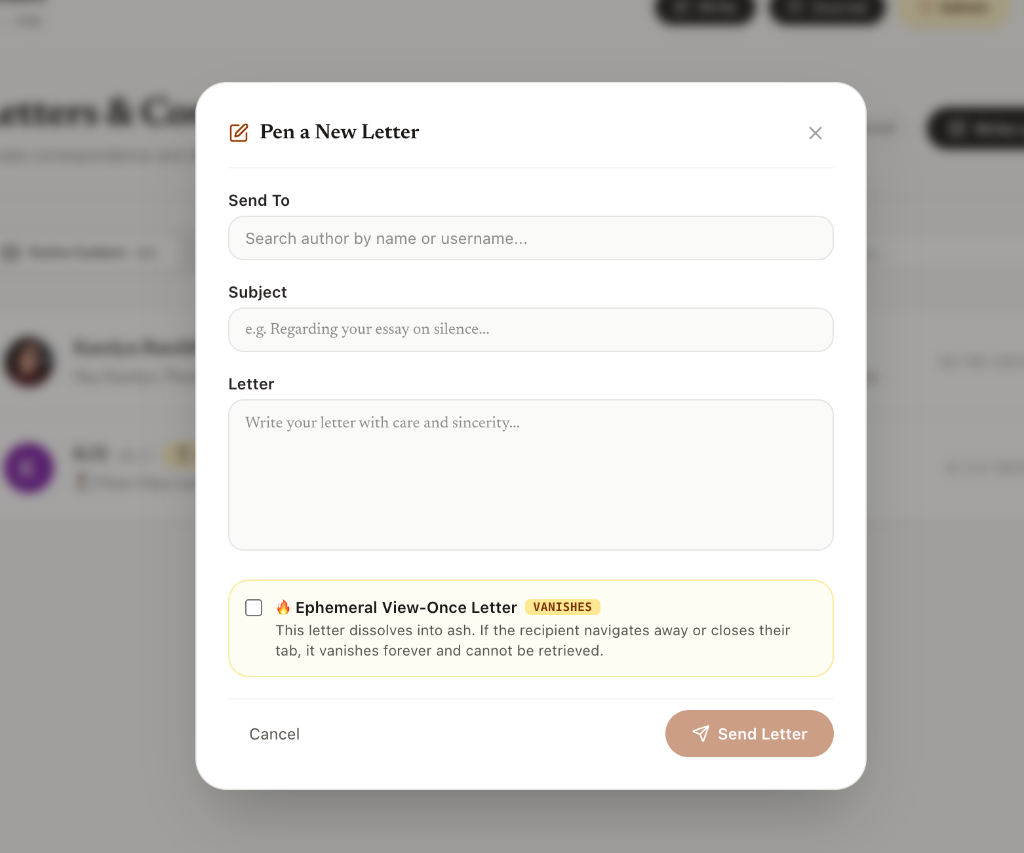
Pen-Pal Letters & Correspondence revives the lost art of slow, deliberate epistolary dialogue between readers and authors, separated entirely from public comment sections and noisy social feeds.

Authors and readers can initiate correspondence directly from the Letters desk (/letters) or by clicking "Send a Letter" on an author portfolio.

The "Pen a New Letter" composer lets writers search for any author by name or username, choose a thoughtful subject line, and compose long-form reflections with care and sincerity.

Includes an authentic Ephemeral View-Once mode (🔥 Vanishes): letters that dissolve into ash and smoke the moment the recipient navigates away or closes the tab, ensuring complete confidentiality for deeply personal reflections.

All ongoing correspondence is organized in a serene, distraction-free inbox with Active Letters and pending Correspondence Requests.

Full Interface View
Pen-Pal Letters & Correspondence
Click to expand full screen
The authentic Pen a New Letter composer modal and Letters & Correspondence inbox on MadeByHumans.Complete View

How to Use This Feature (Step by Step)

1

Open Letters & Correspondence

Navigate to /letters from your account menu, or click "Send a Letter" on any author profile.

2

Pen a New Letter

Click "Write a Letter" to open the composer modal and search for the author you wish to write to.

3

Compose with Sincerity

Add a meaningful subject line and craft your reflection in the unhurried letter composer.

4

Optional Ephemeral View-Once Mode

Toggle "🔥 Ephemeral View-Once Letter" if you want the message to dissolve into ash immediately after being read.

5

Send and Converse Slowly

Click "Send Letter". Read incoming replies at your own pace in your private Active Letters inbox.

Helpful Tips
  • •View-once letters permanently dissolve into smoke when the recipient finishes reading or leaves the thread, leaving no archival trace.
  • •Letters are designed for slow reflection rather than instant chat—take hours or days between responses without pressure.

How Pen-Pal Letters Work

Private, unhurried correspondence between authors and readers in a quiet inbox.

  • •View-once letters dissolve into smoke when the reader leaves the thread.
  • •Completely private between sender and recipient, away from public comments.
  • •Organized into a simple inbox with Active Letters and pending requests.
16 • Writing and Craft

Zen Writing Desk and Ambient Soundscapes

A distraction-free sanctuary for authors to write, revise, and focus.

Open Zen Editor

The Zen Writing Desk is a distraction-free digital atelier crafted specifically for long-form writers and essayists.

Features built-in Ambient Soundscapes: choose from Gentle Rain, Cozy Coffee Shop, Old Library Silence, and Mechanical Typewriter to create your ideal acoustic writing sanctuary.

Includes a slide-out Research Hopper on the right edge of the desk to stash quotes, reference URLs, and draft notes without cluttering your main document.

Full-screen focus mode hides all UI toolbars and menus, leaving only your words floating gently on warm digital parchment.

Full Interface View
Zen Writing Desk and Ambient Soundscapes
Click to expand full screen
The Zen Writing Desk with ambient soundscape selectors and word count telemetry.Complete View

How to Use This Feature (Step by Step)

1

Open the Writing Desk

Click "New Story" in the top navigation bar to launch the Zen editor.

2

Choose an Ambient Soundscape

Click the headphones icon in the upper toolbar to select Gentle Rain, Cafe, Library, or Typewriter sounds.

3

Enter Full-Screen Focus Mode

Click the maximize icon to hide all toolbars and menus for pure, uninterrupted drafting.

4

Utilize the Research Hopper

Slide open the right-side research panel to paste source links, reference quotes, or outline notes.

5

Save and Track Revisions

Your work auto-saves continuously while telemetry records your keystroke rhythm and drafting pace.

Helpful Tips
  • •The Research Hopper keeps your links and notes right next to your draft without needing to switch browser tabs.
  • •Ambient soundscapes run completely locally using Web Audio API synthesis without downloading large audio streams.

How the Zen Desk Works

A distraction-free writing space that saves your words automatically as you type.

  • •Drafts are backed up continuously to your local device so you never lose your work.
  • •Gentle ambient sounds (rain, cafe, library, typewriter) to help you focus.
  • •A slide-out research hopper to keep notes and links nearby while you write.
17 • Writing and Craft

Private Daily Journal

A private sanctuary for daily morning pages and personal reflections.

Open Daily Journal

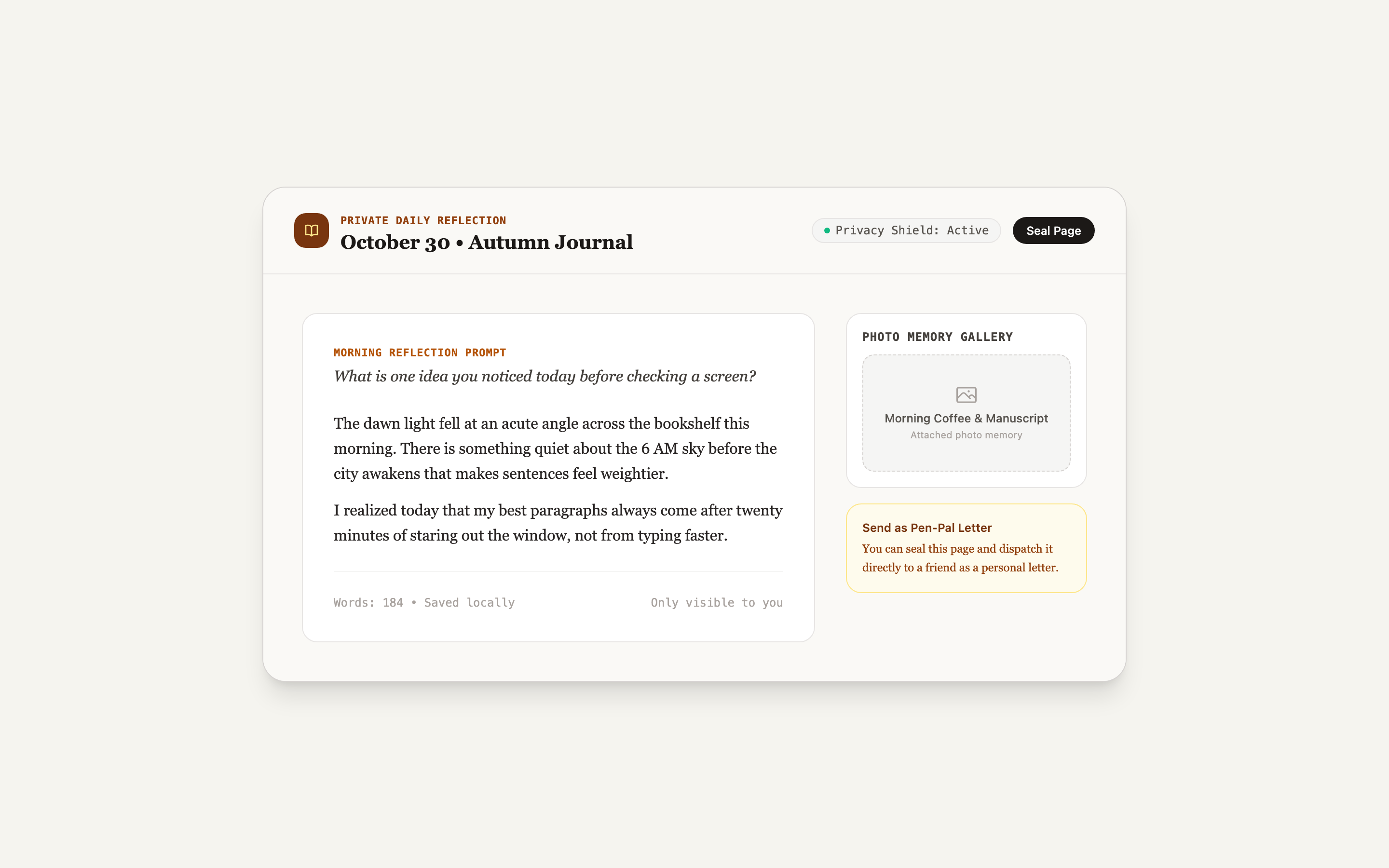
The Private Daily Journal gives writers a safe, encrypted personal space for morning pages, gratitude logs, and unpolished musings.

Features Daily Philosophical Prompts to spark authentic reflection whenever you encounter a blank page.

Journal entries are strictly private by default, encrypted and shielded from public feeds, search engines, and other users.

Whenever a private journal entry blossoms into a profound idea, a one-click "Convert to Essay" button transfers the text directly into the Zen writing desk for public polishing.

Full Interface View
Private Daily Journal
Click to expand full screen
The Private Daily Journal showing prompt cards, writing streak, and private entries.Complete View

How to Use This Feature (Step by Step)

1

Navigate to Your Journal

Click the "Journal" link in your account navigation menu.

2

Select a Daily Prompt

Review today reflective prompt or click "New Prompt" for fresh creative inspiration.

3

Write Freely in Private

Type your raw, unedited thoughts with complete peace of mind; entries are strictly confidential.

4

Track Your Writing Streak

Monitor your daily writing habit with the calendar streak tracker at the top of your journal.

5

Convert to Public Story

If an entry evolves into an essay worth sharing, click "Convert to Story" to import it directly into your writing desk.

Helpful Tips
  • •Journaling for just 10 minutes each morning builds momentum toward your next major published essay.
  • •Promoting an entry to an essay keeps the original journal entry intact while creating a new public draft.

How the Private Journal Works

Your personal reflections are kept strictly private and sealed with a calendar heatmap.

  • •Only you can see your journal entries when logged into your account.
  • •A visual calendar tracks your daily writing streaks over time.
  • •Optionally send a journal entry as a private pen-pal letter to a trusted friend.
18 • Reading and Discovery

Reading Library and Ribbon Bookmarks

Your personal digital bookshelf for saved stories and private notes.

View Reading Library

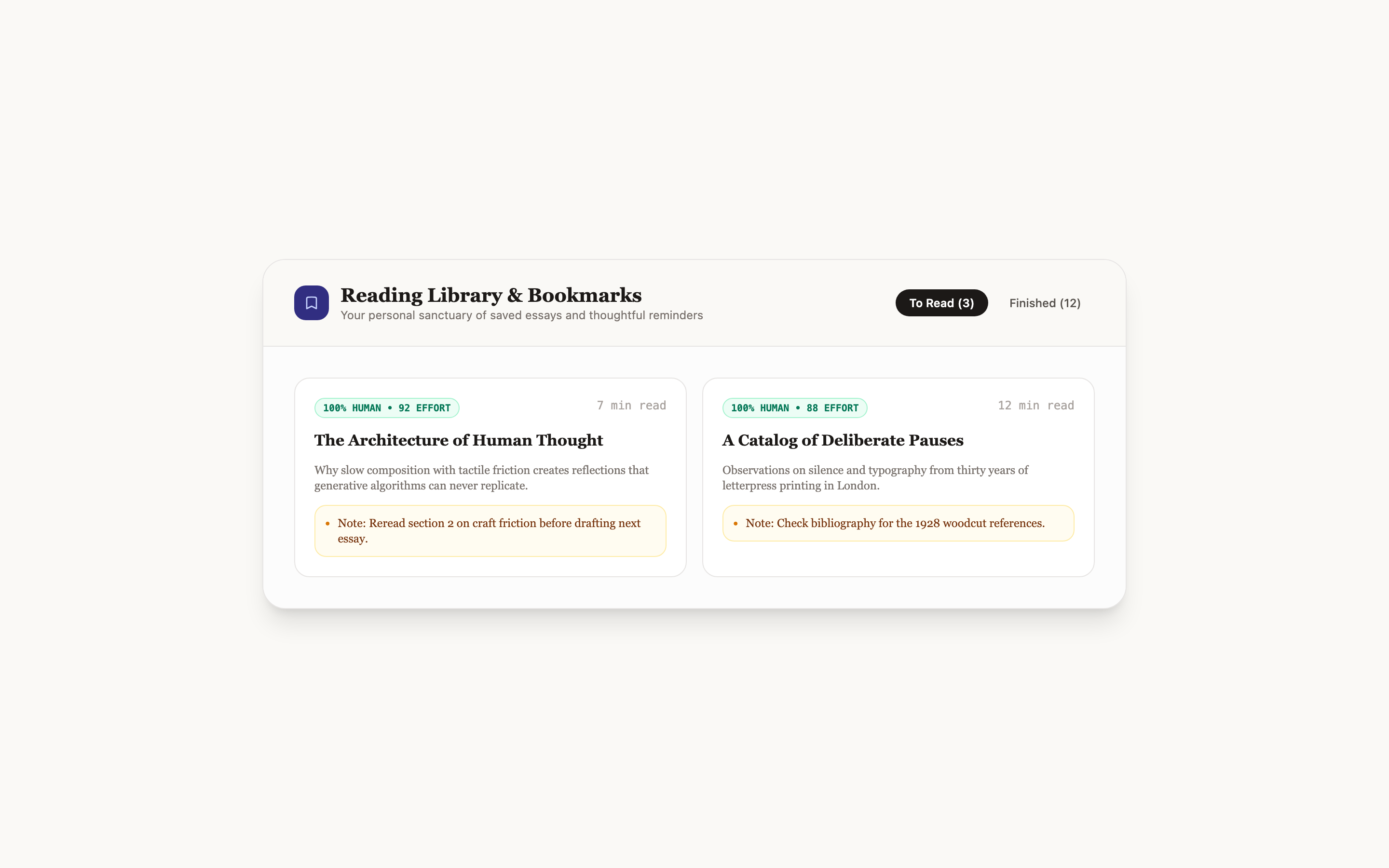
The Reading Library provides an elegant digital bookshelf where you can curate essays you wish to read, revisit, or cherish.

Inspired by traditional silk ribbon bookmarks in hardcover volumes, clicking the ribbon icon on any piece instantly adds it to your personal reading queue.

Attach Private Reading Notes to any bookmarked piece, jotting down why a particular story caught your eye or what you hope to learn.

Organize your collection effortlessly across three distinct shelves: Currently Reading, Saved for Later, and Completed Archive.

Full Interface View
Reading Library and Ribbon Bookmarks
Click to expand full screen
The Reading Library shelf showing silk ribbon bookmarks, reading status, and private notes.Complete View

How to Use This Feature (Step by Step)

1

Bookmark Any Story

While reading an essay, click the silk ribbon icon on the floating reading dock or bookplate header.

2

Attach a Private Reader Note

In the bookmark dialog, write an optional private reminder or thought regarding why you saved the piece.

3

Access Your Library

Click "My Library" in the user menu to view your entire saved collection.

4

Filter by Reading Status

Toggle between "Currently Reading", "Saved", and "Finished" to keep your reading queue structured.

5

Remove or Archive

When you have finished reading, click "Mark as Finished" or remove the bookmark with a single tap.

Helpful Tips
  • •Private notes on bookmarks are only visible to you: use them to remember why you saved an essay or quotes you loved.
  • •Your reading list syncs across devices so you can save on your desktop and read on your mobile phone.

How Bookmarks Work

Your saved stories and reading progress sync across all your devices.

  • •Click the ribbon icon on any story to save it to your reading list.
  • •Remembers exactly where you left off reading so you can pick it up anytime.
  • •Add private margin notes to your saved stories for future reference.
19 • Community and Privacy

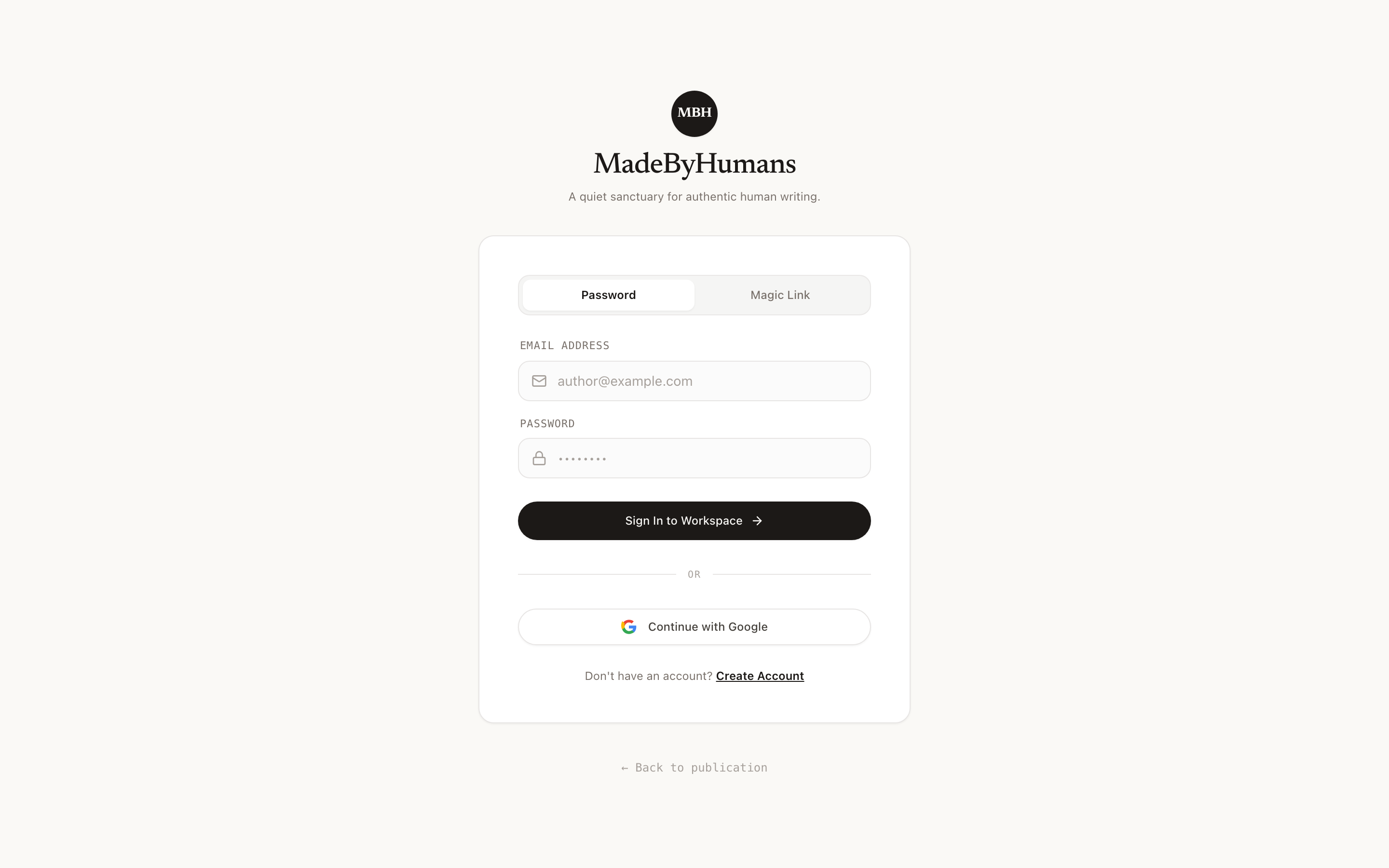
Clean Sign-In and Account Gateway

Zero tracking cookies, zero passwords, zero friction.

Sign In to MadeByHumans

The Clean Authentication Gateway respects user privacy from the very first interaction, eliminating bloated tracking scripts, third-party advertising cookies, and captcha puzzles.

Features passwordless authentication via Email Magic Links: enter your email address and click the secure login link sent directly to your inbox.

Supports WebAuthn Biometric Passkeys (Touch ID, Face ID, Windows Hello) for instant, biometric one-touch login without ever typing a password.

Ensures complete security and account recovery while safeguarding your personal data from third-party advertising networks.

Full Interface View
Clean Sign-In and Account Gateway
Click to expand full screen
The Clean Authentication Gateway with passwordless email magic link and passkeys.Complete View

How to Use This Feature (Step by Step)

1

Open the Sign-In Dialog

Click "Sign In" in the top navigation bar from any page on the site.

2

Enter Your Email Address

Type your email into the clean input field and click "Send Magic Link".

3

Open Your Email Inbox

Check your inbox for the secure sign-in message from MadeByHumans.

4

Click the Magic Link

Tap the login link in your email to authenticate instantly across all your devices.

5

Optional Passkey Enrollment

Once logged in, register your device Touch ID or Face ID in settings for seamless one-tap logins in the future.

Helpful Tips
  • •Passwordless magic links eliminate password re-use vulnerabilities and make phishing virtually impossible.
  • •Setting up a passkey enables instant 1-second sign-in using your fingerprint or facial recognition.

How Sign-In Works

Sign in quickly with Google or email, with zero ad trackers or tracking pixels.

  • •Simple one-click sign in with Google or a magic email link.
  • •Zero third-party advertising cookies or behavioral tracking pixels.
  • •Your account data and saved drafts are kept safe and private.
20 • Reading and Discovery

Mobile Reading and Writing Experience

An ergonomic reading and writing experience tuned for handheld screens.

Read on Mobile

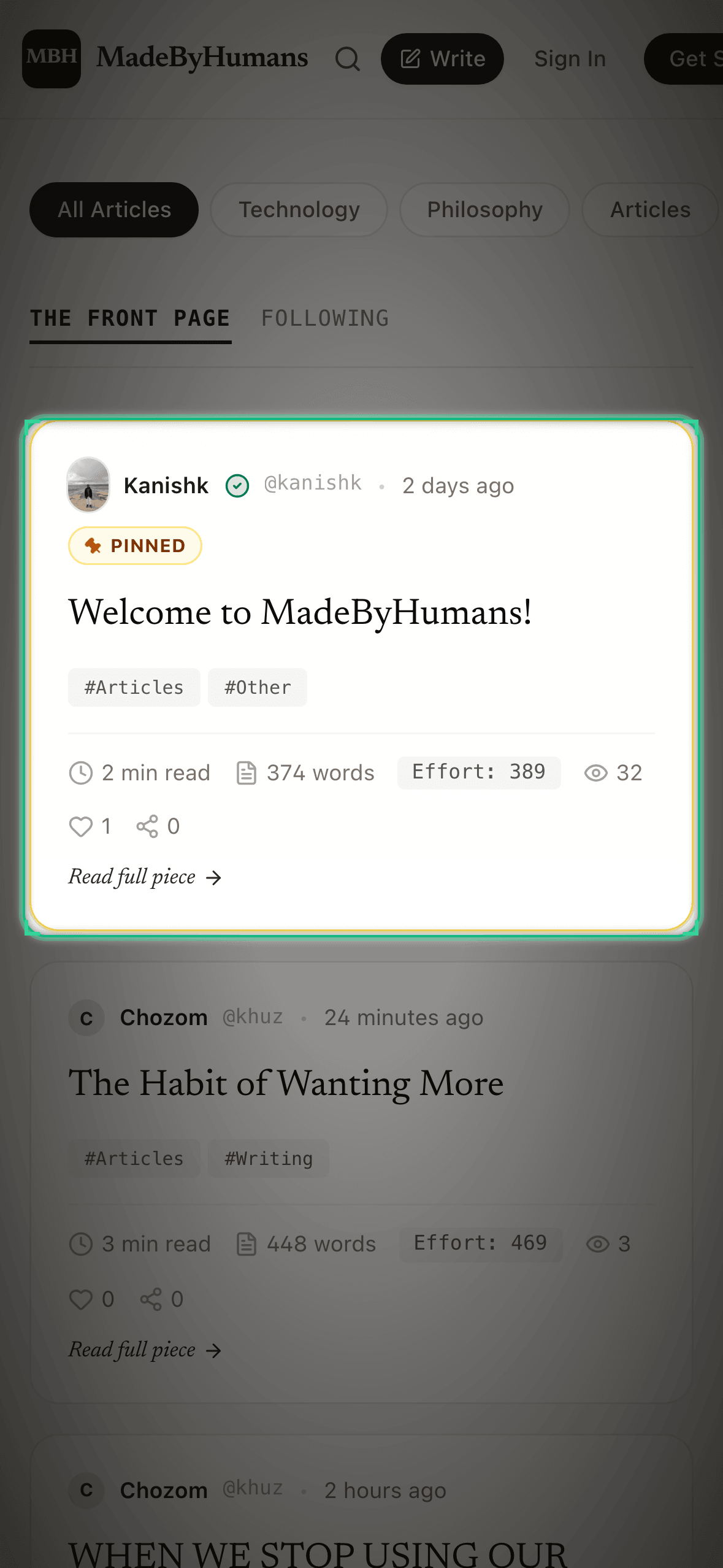
The Mobile Reading and Writing Experience translates the desktop literary magazine aesthetic into an ergonomic, one-handed mobile interface.

Fluid serif typography and calibrated line spacing ensure maximum legibility and prevent eye strain on OLED and Retina smartphone screens.

A thumb-friendly bottom action dock provides instant access to bookmarks, quote cards, spoken prologues, and the writing timelapse without awkward reaching.

Slide-up sheet drawers replace bulky modals, letting you browse margin reflections, table of contents, and author profiles with natural swipe gestures.

Mobile Reading and Writing Experience
Click to expand full screen
The mobile editorial experience optimized for comfortable one-handed reading.Spotlight Focus: Mobile editorial card layout with responsive bookplate, reading time badge, and thumb-friendly navigation.

How to Use This Feature (Step by Step)

1

Open on Any Mobile Device

Visit madebyhumans.diy on iOS Safari, Android Chrome, or any mobile browser.

2

Enjoy Ergonomic Reading

Scroll smoothly through essays with thumb-optimized font sizing and comfortable margins.

3

Use the Bottom Action Dock

Tap the docked icons at the bottom of your screen to bookmark, share, or listen to prologues.

4

Highlight for Mobile Quote Cards

Press and hold to highlight text, then tap the Quote Card icon to generate mobile-ready graphics on the go.

5

Swipe Gestures

Swipe up from the bottom edge to view margin notes or pull down to dismiss modal sheets effortlessly.

Helpful Tips
  • •On iOS Safari, tap "Share" and select "Add to Home Screen" to install MadeByHumans as a standalone web app.
  • •The bottom action dock automatically hides when scrolling down to give you an expansive, full-screen reading view.

How Mobile Reading Works

The layout adapts smoothly to phones and tablets with comfortable text and touch buttons.

  • •Text sizes and line heights adjust automatically for comfortable mobile reading.
  • •Large touch targets make navigating, highlighting, and writing simple on the go.
  • •Fast page loads even on slower mobile cellular connections.
21 • Community and Privacy

Editorial Desk and Feedback

Direct, personal communication with the human team behind the platform.

Contact Editorial Desk

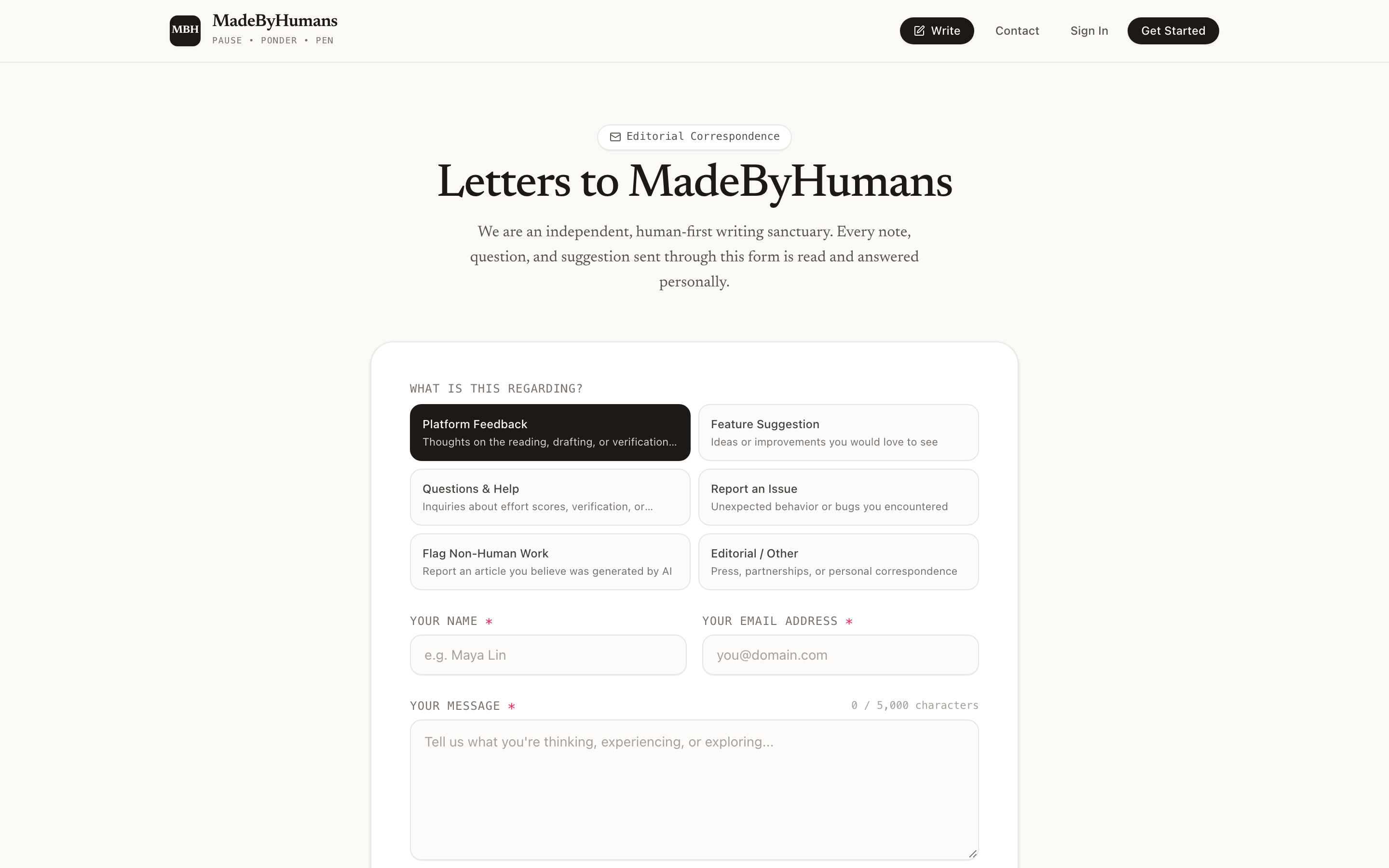
The Editorial Desk is a direct conduit to the human curators, editors, and engineers building MadeByHumans.

Unlike modern tech platforms that hide behind automated chatbots, help center labyrinths, or canned auto-responses, every note sent to the Editorial Desk is read by a real person.

Select from dedicated inquiry categories: Editorial Submission, Technical Bug Report, Feature Proposal, or General Thought.

Authors and readers receive personal, deliberate email responses directly from the founding editorial team.

Full Interface View
Editorial Desk and Feedback
Click to expand full screen
The Editorial Desk contact form for sending messages, pitches, and feedback.Complete View

How to Use This Feature (Step by Step)

1

Open the Editorial Desk

Click "Editorial Desk" in the footer or visit madebyhumans.diy/contact.

2

Select Inquiry Category

Choose whether your message is an Editorial Submission, Bug Report, Feature Suggestion, or General Inquiry.

3

Provide Your Details

Enter your name and email address so the editors know how to reach you.

4

Compose Your Message

Write your note, pitch, feedback, or report in the clean message field.

5

Send Directly to Editors

Click "Send Message" to transmit your note straight to the editorial team inbox for personal review.

Helpful Tips
  • •If pitching an essay for editorial curation, include a draft link or a brief 2-paragraph synopsis of your premise.
  • •Bug reports that include your browser and operating system help us resolve issues much faster.

How Editorial Messages Work

Your questions and notes go directly to our editorial team inbox.

  • •Send ideas, questions, or feedback directly from the contact modal.
  • •Our editorial team reads and responds to your notes.
  • •Protected against spam so reader notes always get through.
Get in Touch

Have questions, feature suggestions, or feedback?

User Guide
© 2026 MadeByHumans • Built for genuine human expression
madebyhumans.diy